You've just downloaded a client font, double-clicked the file, and expected Illustrator to cooperate. Instead, the typeface is nowhere in the menu, the deadline is moving, and now you're trying to remember whether the problem is the font file, Creative Cloud sync, or just a stale app session. That moment is normal, and the fix is usually a workflow decision, not a mystery.

Most of the confusion around how to add fonts to Adobe Illustrator comes from the fact that Illustrator now lives in two font worlds at once. One path uses Adobe Fonts and account-based activation, while the other relies on classic OTF or TTF files installed on the computer, then picked up by Illustrator on launch. Adobe's own guidance reflects that split, and the practical answer depends on where the font came from and how your team works Adobe Illustrator fonts FAQ. For a broader licensing primer, the companion guide on font file formats and licensing is worth keeping close.
Why a Fresh Font Never Shows Up in Illustrator
A designer on a packaging job gets the approved brand typeface at 4:40 p.m., installs it, and opens Illustrator expecting relief. The font is still missing, the text box is still set in a fallback face, and the client is asking for a PDF before the call ends. That is the point where people start reinstalling things they do not need to touch.
The problem is usually the path, not the typeface
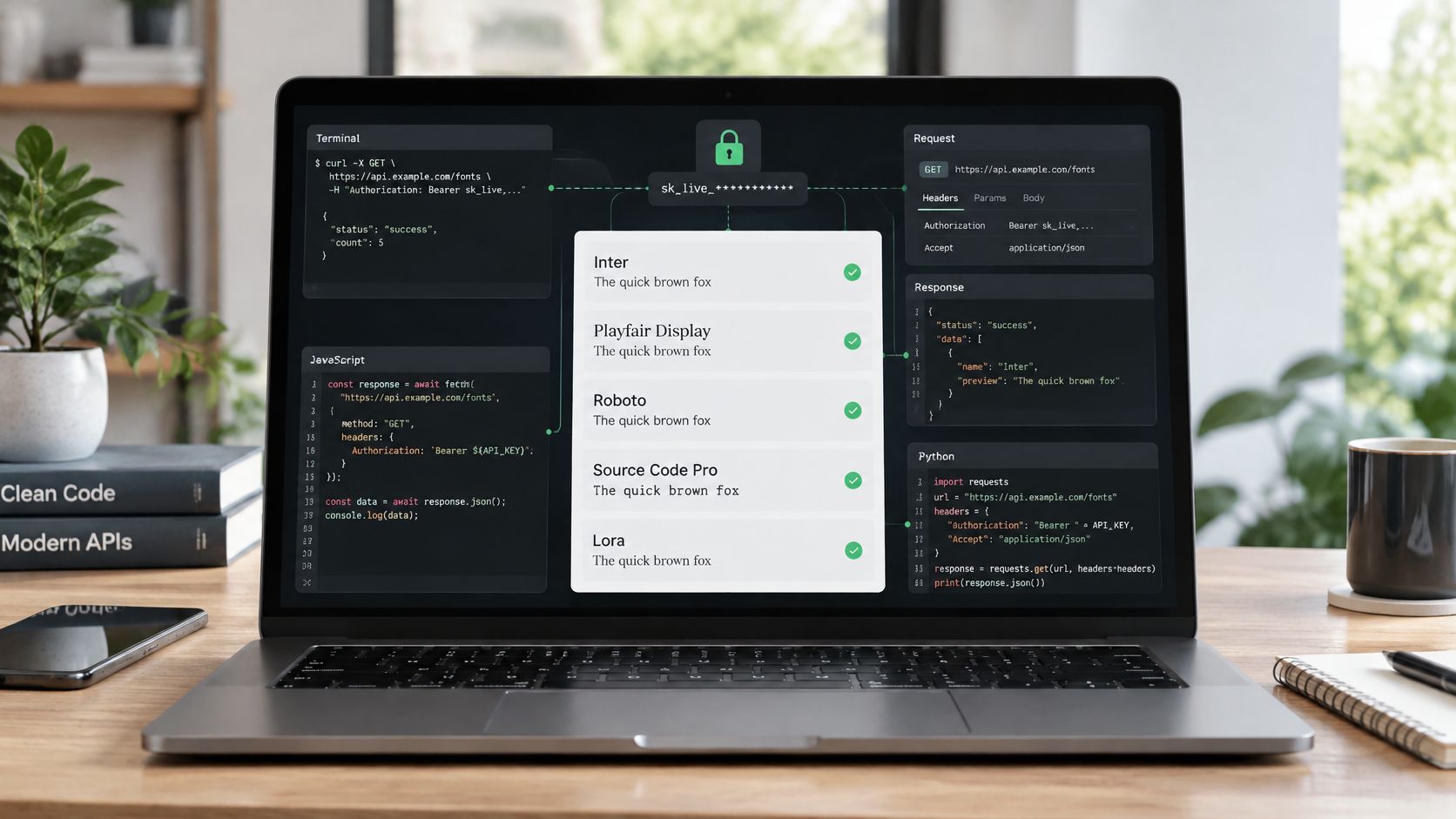
Illustrator does not treat every font source the same way. Adobe documents three official ways to add fonts to Illustrator, directly inside Illustrator, through the Adobe Fonts website, or with the Creative Cloud desktop app, and that setup reflects Adobe's cloud activation model rather than a manual file-copy workflow Adobe Illustrator fonts FAQ. In practice, that means a font can be “added” in Adobe's ecosystem without ever being copied into a folder you can browse like a normal asset.
That is why the same job can succeed for one designer and fail for another. If the font came from Adobe Fonts, the cleanest route is activation through Adobe's own tools. If it came from a foundry, marketplace, or email attachment, you are in local-install territory, which behaves differently and often needs Illustrator to be reopened before the new family appears, as covered in the detailed local install workflow notes.
Practical rule: first identify the font's source, then use the matching channel. That single decision prevents most “installed but missing” headaches.
What to expect before you click around
Adobe's current interface lets you locate fonts from the Character panel, the font browser, the Properties panel, the Control panel, or the contextual task bar. In the Discover More tab, Adobe says you can hover over a font and click the Add icon to sync it, and Creative Cloud desktop distinguishes between Add Family for a whole family and Add font for a single style Adobe Illustrator font management. That distinction matters when a client wants only Regular, or when the family is large and you only need one weight for the file.

A licensing check belongs in the same workflow. Desktop activation is one use case, web use and file embedding are separate rights, and a quick review of the font file formats and licensing basics helps avoid a late-stage export surprise. If a font is only cleared for local work, you should know that before it moves into a client deliverable.
Adding Fonts Through Adobe Fonts and Creative Cloud
If the font is part of an Adobe subscription workflow, stay inside Adobe's activation path. That's the most predictable route for teams that already rely on Creative Cloud, because the font becomes available across Adobe apps without anyone hunting through system folders or handing around files by email.
The three Adobe-approved entry points
The first path is inside Illustrator itself. Open the Character panel, use the font browser, type the family name if you know it, preview the text on selected content, then click the Add icon to sync the font to your account before applying it to the document Adobe Illustrator font management. Adobe also surfaces the same browser in the Properties panel, Control panel, and contextual task bar, so the exact panel matters less than the activation step.
The second path is the Adobe Fonts website. That route is useful when you're checking a family outside a live layout, or when you're working on a second machine and want the activation tied to the same Adobe account. The third path is the Creative Cloud desktop app, where Adobe lets you choose Add Family for the whole family or Add font for individual styles Adobe Illustrator fonts FAQ. That style-level choice is handy when a project only needs one weight and you don't want to sync more than necessary.
Why this path is usually the cleanest
Adobe Fonts is easiest when the font already lives in the Creative Cloud ecosystem. It's also the least ambiguous route for teams that share files across multiple Adobe apps, because activation follows the account rather than the workstation. If a font is available here, use this route first. It reduces the odds of duplicate local installs, keeps the family consistent across machines, and avoids the “which file version did we install?” problem that shows up late in production.
For licensing context around Adobe Fonts on desktop use, the article on Adobe Fonts licensing in 2026 is a useful companion reference.
Installing Local Font Files on macOS and Windows
A downloaded font file still needs a clean handoff before Illustrator can use it. Start by extracting the archive if the delivery came in a ZIP, then open the actual OTF or TTF file, not the compressed package. That step is easy to miss, and it is usually the first place a local install fails.
macOS and Windows use different installers
On macOS, open the font in Font Book, review the preview, then install it so the system can hand it to apps that read local fonts at launch. On Windows, use Settings or the built-in font install path in File Explorer, then confirm the font is added to the operating system rather than left in Downloads. If you want a Mac-specific refresher on the download side of the process, downloading fonts on a Mac with the right file structure is a useful reference.
After the install, relaunch Illustrator. That is the step people skip most often. Illustrator loads the available font list when it starts, so a font that is already visible in Finder or File Explorer may still stay hidden until the app is reopened. Once Illustrator is back up, open the font browser and check the Your Fonts tab to confirm the local family is available alongside activated Adobe Fonts.
A font can install correctly and still stay invisible in Illustrator until the app restarts. The file is fine, the list just has not refreshed yet.
Keep the local install clean
Good font handling starts with the original files. Save the download, the extracted font files, and any license notes in the project folder instead of scattering them across the desktop. That makes it easier to verify which version was used later, especially when a handoff needs to be audited or a duplicate has to be removed before packaging files.
A quick license check belongs here too. Confirm that the font allows desktop installation, and if the project will ever move into web use or embedded deliverables, check those rights before the file goes into production. For a practical Mac workflow reference, downloading fonts on a Mac with the right file structure also helps keep the handoff organized.
Choosing Between Adobe Fonts, Font Managers, and Manual Installs
Most production teams don't use just one font channel. They keep synced Adobe families for broad access, use a font manager for project-specific collections, and maintain a small stash of manually installed files for special cases. The right choice depends on how often the font changes hands, how many apps need it, and whether the team needs portability after someone leaves the project.
| Channel | How it Adds Fonts | Best For | Watch Out For |
|---|---|---|---|
| Adobe Fonts | Activate through Illustrator, the Adobe Fonts site, or Creative Cloud desktop | Shared Adobe workflows, fast cross-app access, subscription-based teams | Activation depends on Adobe account access and sync state |
| Font managers | Organize and activate local font sets from a dedicated library | Large libraries, project-based collections, controlled activation | Another layer to maintain, plus training for the team |
| Manual installs | Copy local OTF or TTF files into the operating system | One-off jobs, offline setups, legacy files, client-provided assets | Easy to duplicate, hard to audit, and vulnerable to version drift |
Pick the channel that matches the job
Adobe Fonts is strong when the same family needs to be available across multiple Adobe apps without much ceremony. Manual installs are still practical when the font is owned outside Adobe's ecosystem, especially for a fixed client deliverable or a laptop that won't stay online. Font managers sit in the middle, giving production teams more control over activation without forcing every font into the system forever.
Think about handoff before the first install
A short freelance job and a long-running brand system don't need the same setup. A quick campaign may only need a single local family and a clean PDF export. A brand platform, by contrast, benefits from a controlled library so the team can reuse the same typography without hunting through old downloads. The key question is not which method is fashionable. It's which one minimizes surprises when a file crosses from one designer to the next.
Fixing Fonts That Still Won't Show in Illustrator
A font can be installed, synced, and sitting on the machine, yet still refuse to appear in Illustrator. That usually comes down to stale caches, sync lag, duplicate files, or the missing-fonts dialog pointing to a fallback instead of the face you expected.
Start with the least destructive checks
Quit Illustrator completely, then open it again. If the font was installed locally, that restart often clears the problem because the app rebuilds its font list on launch. If the font came through Adobe Fonts, confirm that activation is still live in Creative Cloud, then restart Illustrator once more so the sync has time to catch up.
Check for duplicates or conflicts next. The same family can exist in more than one location, or a damaged copy can sit beside the correct one and confuse the app. Then test the font outside Adobe apps if you can. If it breaks in the system preview or behaves differently elsewhere, the file itself is the issue, not Illustrator.
Read the missing-fonts dialog carefully
When an Illustrator file opens and a typeface is missing, the replacement dialog is not just a warning. It tells you the document has already fallen back to another face, or that a sync delay kept the original from loading in time. A file can look fine on screen while the actual type settings have already changed underneath it.
That matters for teams that move assets between desktop and web work. A clean local install does not guarantee the same behavior in every environment, and the same goes for activation through cloud sync. For a related production-side check, the note on improve CLS with font-display helps explain why font loading choices can affect what users see.
Keep a short diagnostic order
- Restart Illustrator first. It is the fastest way to rule out a stale session.
- Check for duplicate files. Conflicts often look like simple missing-font errors.
- Verify the font in another app. That separates file health from Illustrator behavior.
- Reset preferences only if needed. That is a heavier move and should not be the first response.
If the file still looks wrong, inspect the font itself before you keep chasing app settings. The internal analyzer at Font Checker Pro's font file analysis page is useful for spotting problems before the file goes into a live project. A short licensing check belongs here too. Confirm that the font is cleared for desktop use, and that any web or embedding rights match the way the file will leave your team.
Exporting and Embedding Fonts From Illustrator Files
Adding the font is only half the job. The file still has to leave your machine, and that handoff is where licensing and compatibility can get messy if nobody pays attention. A clean export routine protects both the design and the font rights tied to it.
Know the difference between outlining and embedding
For print handoff, outlining type turns live text into vector shapes. That removes the need for the recipient to have the font installed, which is why it's so common for final delivery. It also means the text is no longer editable as type. That's the trade-off, editability versus portability.
For PDF delivery, Illustrator can preserve text in ways that depend on the export settings and the license attached to the font. For SVG and similar web-facing formats, the handoff needs extra care because the file may carry font references that behave differently in browsers or downstream tools. A style guide is the right place to define which typography stays live, which gets outlined, and which should never leave the design system in raw form. The style guide tips for 2026 piece is useful context for that policy work.
Treat the export format as a licensing decision
Not every font should be embedded just because the software allows it. Embedding can be fine when the license permits it, but it can also expose a foundry's font software in ways the agreement doesn't allow. Before packaging an AI file, PDF, or SVG, check what the recipient is supposed to do with the file. A printer needs one kind of handoff. A developer needs another. A different designer often needs the editable source plus clear notes on what was licensed.
Production habit: decide the output format at the same time you choose the font. That prevents late-stage arguments about editable text, licensed embedding, and missing glyphs.
A Short Licensing and Verification Checklist Before You Ship
A file can look ready in Illustrator and still fail a handoff because the licensing is wrong. Desktop licenses, web licenses, and embedding rights are separate agreements, and the U.S. Copyright Office distinguishes between typeface designs and the font software itself, which is why the license controls how the software is copied and used rather than treating every font like a free-floating visual idea font licensing and legal overview. In the EU, unauthorized software copies can expose users to civil liability, so this sits in production review, not just in design review.
Before a file ships, check the source, the active font state, and the output format. Confirm where the font came from and whether the desktop or web use matches the license. Verify that the font is active or installed on the machine you used for final output. Record whether the deliverable uses live text, outlines, or embedded subsets, because those notes make later audits much easier and help when the missing-fonts dialog appears on another workstation.
For teams that manage a lot of files, a simple audit trail catches problems before a client or legal reviewer does. A practical guide to avoiding font license fines in 2026 is a reminder that rights checks belong in production, not at the end of the job.
If you need to verify fonts before a handoff, Font Checker Pro gives teams a practical way to audit live URLs, PDFs, images, and zipped font sets without guessing what is really in the file. It fits Illustrator workflows well when you need proof that a font is active, licensed, and ready for a client deliverable.