You've finished a polished Word document using your organization's typeface. It looks right on your screen, so you send it to a client. They open it, and the carefully chosen headings and spacing have turned into a familiar substitute such as Times New Roman. The font was installed correctly, but the document still wasn't prepared to travel.
That's the practical difference between loading a font into Word and making typography reliable across computers, operating systems, browsers, printers, and collaborators. The install itself is usually straightforward. The difficult questions come afterward: where Word gets its fonts, whether the recipient has the same files, whether embedding is permitted, and whether your license covers the way you're using the typeface.
Why Installed Fonts Still Don't Prevent Substitution
A document can look correct during production and still fail at handoff. Word stores formatting instructions in the file, but the font may exist only on the author's computer. When another system cannot access that typeface, Word substitutes a different one, changing headings, line breaks, and page flow.
Testing on your own machine is not enough. A client on macOS, a printer on another Windows configuration, and outside counsel using Word Online each introduce a separate substitution risk. The font may appear correctly for the author while failing for the people who review, edit, print, or publish the document.
A reliable handoff covers four checks:
- Install at the operating-system level, rather than searching for a Word-only font folder.
- Match the workflow to the device, because Windows desktop, macOS, mobile apps, and Word Online handle fonts differently.
- Check embedding permissions, since an installed font may not be licensed to travel inside a document.
- Record the license basis, especially when files move among internal teams, clients, printers, and public channels.
Microsoft's guidance confirms that Word inherits installed fonts from the operating system. That makes font installation and document distribution one operational loop. The practical question behind how to load fonts into Word is not which button imports the file. It is whether every recipient can access the same typography, or whether the document needs embedded fonts or a controlled export format.
Licensing can stop a technically correct workflow. A font may be installed and visible in Word, yet its terms can restrict embedding, redistribution, or use in files sent outside the organization.
Practical rule: Test the finished document on a clean or differently configured machine before calling the handoff complete.
That check exposes fallback behavior before a client, printer, or reviewer does.
Installing Fonts for Word on Windows
Word on Windows doesn't maintain a private font store. Windows manages the installed typefaces, and Word reads from that system collection when it starts.
The Windows installation path
Start with the font download. Microsoft notes that custom fonts commonly arrive as TrueType files, .ttf, or OpenType files, .otf. If the download is a ZIP archive, extract it first. Trying to install directly from the compressed folder is a common source of confusion because the actual font files are still inside the archive.
Open the extracted folder, then right-click the required .ttf or .otf file and select Install. If Windows asks for permission, approve the change. On a managed workstation, use Install for all users when that option is available and appropriate. That choice makes the font available across user profiles on the machine, rather than limiting it to the account that performed the installation.
Microsoft documents that Windows stores installed fonts in C:\Windows\Fonts, and that installing a .ttf or .otf file at the Windows level makes it available automatically in Word after you reopen the app. The important operational detail is reopening Word. A running copy may not refresh its font list immediately.
For a broader Windows walkthrough, keep this guide to installing fonts in Windows available for your internal support documentation. If you're preparing a résumé or other structured document, typography choices also need to support readability and scanning, so these resume font size guidelines can help with the document-design decision after installation.
An alternative acquisition route
Microsoft also documents a Windows Store path for browsing and installing fonts. That route reduces manual download and archive handling, while still treating the font as a system-managed resource. Whichever route you choose, close and reopen Word before checking the font family, styles, and variants.
Loading Fonts for Word on macOS
macOS uses Font Book rather than the Windows installation interface. The principle is similar, Word reads system fonts, but the management steps are different.
Installing through Font Book
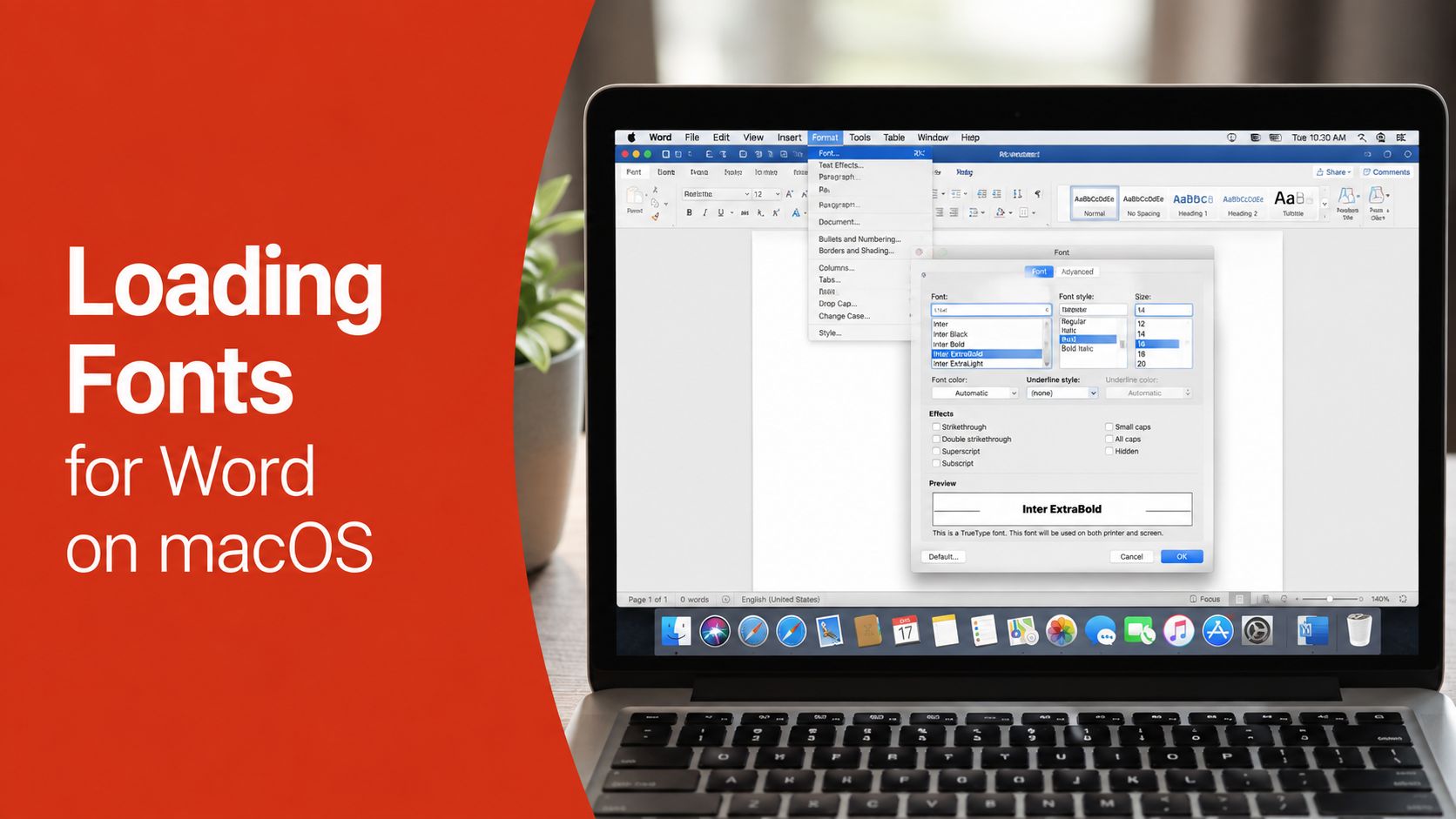
Download the font and extract the archive in Finder if necessary. Locate the .ttf or .otf file, open it with Font Book, and select Install. You can also drag the extracted file into Font Book. The font then becomes available to macOS applications that read the system font collection, including Word.
If Word was open during installation, quit and relaunch it. If the typeface still doesn't appear, restart the Mac. Font Book also gives you useful controls for maintenance:
- Activate a disabled font when a project needs it.
- Deactivate a font when you want to test whether it's causing a conflict without deleting the file.
- Resolve duplicates when multiple versions of a family are installed.
Deactivation is often safer than deletion during troubleshooting. It preserves the file and its history while removing it from the active font environment. For a more detailed Mac workflow, use this complete guide to downloading fonts on a Mac.
The portability limitation
TrueType and OpenType files work across Windows and macOS without conversion, but that doesn't mean a Word file will carry the typeface between those systems. Microsoft states that Office font embedding is limited to Windows desktop versions of Word, PowerPoint, and Publisher. Embedding isn't supported on macOS, iOS, Android, or the web versions of Word or PowerPoint, as documented in this enterprise font licensing and compliance guidance.
That limitation changes the handoff plan. If a Mac recipient doesn't have the font installed, Word may substitute another typeface. For typography-critical files, distribute the font through a properly licensed internal process, provide a PDF for fixed presentation, or use a Windows desktop workflow where permitted embedding can be applied.
Using Custom Fonts in Word Online
Word Online doesn't behave like desktop Word because there's no ordinary font-installation dialog in the browser. A browser session can't reach into your computer's font library and make every local typeface available to everyone editing the document.
Some Microsoft 365 environments support centrally managed font references through a cloud font gallery. That route is administrative rather than a casual user workflow. It depends on the organization's subscription, permissions, and tenant configuration, so teams should confirm availability with their administrator instead of assuming that a desktop installation will synchronize automatically.
The dependable browser workflow
For most users, the safer process is:
- Install and test the font in desktop Word on the supported computer.
- Save the document as
.docx. - Open the file in Word Online for review or light editing.
- Recheck the document in desktop Word before final delivery.
Word Online may render a fallback when the original font isn't available. Font families with separate regular, bold, italic, or bold-italic files can also behave inconsistently in a browser if the required variants aren't available through the cloud environment. A document may appear acceptable at a glance while losing the intended hierarchy in headings, captions, or emphasis.
The difference between a font installed for a computer and a font authorized for browser delivery is central to web and desktop font licensing. A desktop workflow concerns local applications and document outputs. A web workflow can involve hosted font files and requires its own licensing analysis.
Treat Word Online as a practical collaboration surface, not as a guarantee of typographic fidelity. If exact line breaks, brand styling, or pagination matter, perform the final check in the desktop application where the font is installed and supported.
Embedding Fonts So Documents Travel Clean
Installing a font fixes the author's workstation. Embedding addresses the recipient's workstation, but only when the font's license metadata permits it and the application supports the feature.
Microsoft identifies three embedding states used in Office workflows:
| Embedding state | What the recipient can do |
|---|---|
| Preview-only | View the document, but not save edits on another computer using that font |
| May embed | Open, edit, and save changes using the embedded font |
| May not embed | The font can't be packaged into the document, so a missing local font is substituted |
Microsoft warns that a font marked May not embed will be replaced if the recipient doesn't have it installed locally, as explained in its guidance on font license restrictions. The fact that a font appears in Word's list says nothing by itself about whether embedding is permitted.
Enabling the document option
In supported Windows desktop versions of Word, open the application's Save options and enable the setting to embed fonts in the file. Depending on the workflow, you may also see an option to embed only the characters used in the document. That can reduce portability for later editing, so it should be chosen only when the recipient's role is known and the file doesn't need broad revision.
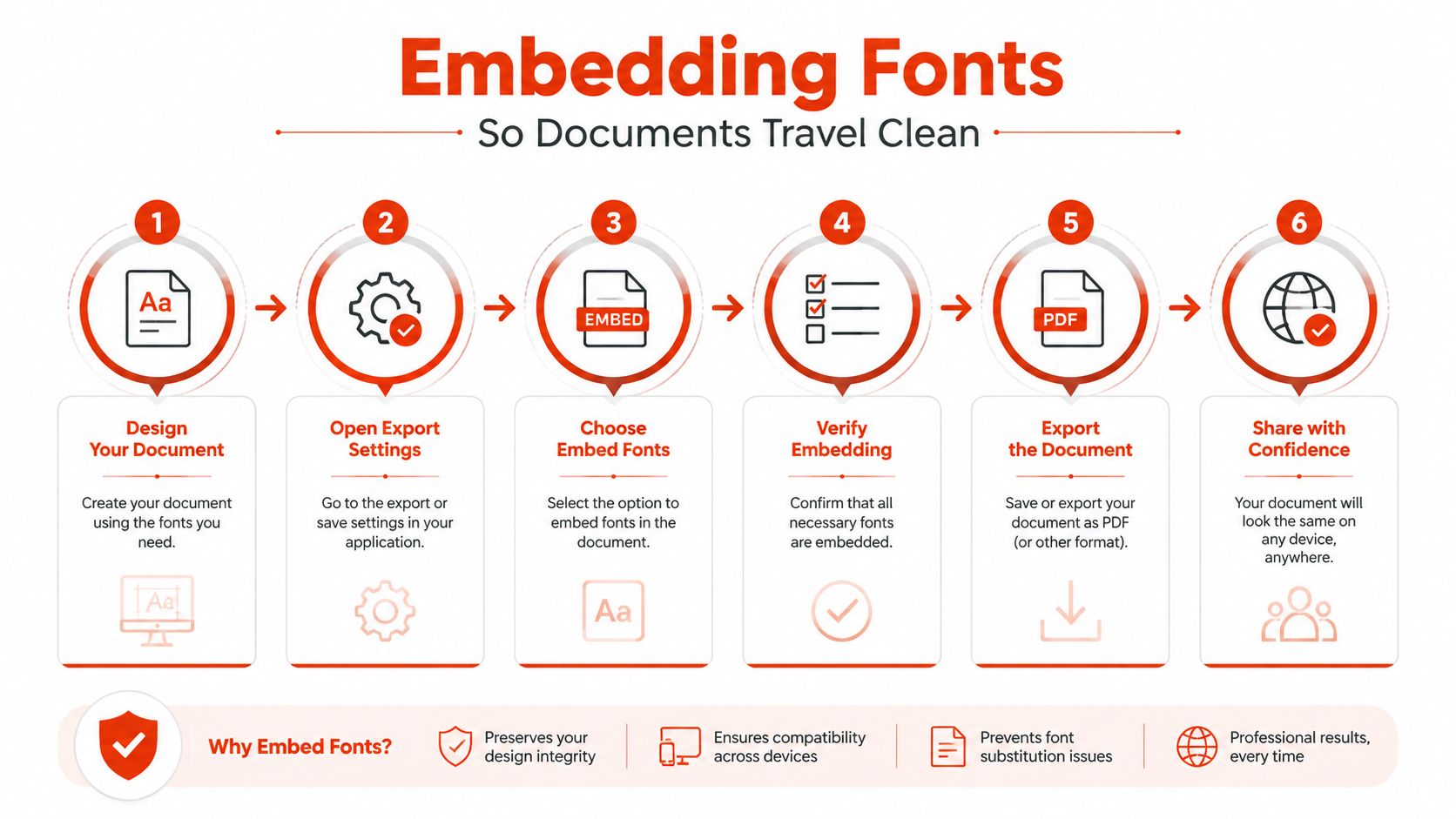
Embedding can increase file size, and it doesn't override the typeface's restrictions. A May-embed font can make a .docx more self-contained for an approved recipient. A Preview-only font may suit a read-only review, but it's a poor choice for a document that several people must revise. A May-not-embed font requires another distribution plan, such as licensed installation on recipient machines or delivery as a fixed-output PDF.
For publishing and document production teams, a typesetting glossary for authors can also clarify terms that affect layout discussions. Font embedding should be treated as a controlled output decision, not a checkbox added at the end without checking rights.
A useful audit step is reviewing the final Word file for embedded resources and documenting the result. This Word font extraction and audit guide is relevant when a team needs to verify what a delivered document contains.
Troubleshooting Why Your Font Does Not Show Up
A clean installation doesn't guarantee an obvious entry in the font menu. Current Office builds use a modern font picker that lets users search, pin, and expand font families, while older tutorials often describe only the legacy dropdown. Microsoft's modern picker documentation reflects interface updates across 2025 and 2026, so the screen may not match an older support article.
Start with the simplest checks:
- Extract the archive: Confirm that you installed the actual
.ttfor.otffile, not a ZIP container. - Restart Word: Quit every Word window and reopen the application.
- Search the family: Use the modern picker's search field and expand the family to reveal available styles.
- Check variants: Confirm that regular, bold, italic, and other required files were installed.
- Review permissions: If Windows requested approval and the prompt was dismissed, repeat the installation.
- Inspect duplicates: On macOS, use Font Book to resolve or deactivate conflicting versions.
If Word still can't find the typeface, restart the operating system to refresh its font database. On managed machines, ask IT to confirm that policy restrictions haven't blocked installation. A document can also be opened in an environment that doesn't support the required font, especially Word Online or a mobile application.
Do not confuse visibility with permission. A font that loads successfully may still be restricted from embedding or redistribution.
That distinction matters because U.S. copyright guidance commonly cited in font-licensing discussions describes statutory damages of $750 to $30,000 per work infringed, rising to up to $150,000 per work for willful infringement. Those figures are discussed in the applicable Microsoft Office license terms/Microsoft%20License%20Terms%20Office%202024_English-Great%20Britain.pdf). This article is informational, not legal advice. Ask qualified counsel to interpret a specific license or dispute.
Licensing Risks and Compliance You Should Not Ignore
The installation question is technical. The distribution question is contractual and sometimes legal. A desktop font license typically addresses installation on computers and static outputs. It doesn't automatically authorize hosting the same font on a website, in an app, or inside a service that serves browser users.
That desktop-versus-web distinction creates a common failure pattern. A designer acquires a typeface for local documents, then a developer uploads its files to a website because the brand already “owns” the font. Those are separate uses, and the web use may require a separate webfont license. Don't describe a typeface as free or safe until you've checked the actual license terms, including commercial use, modification, redistribution, embedding, and the number or type of installations permitted.
Build a repeatable control
For each font family, keep a record of:
- License source: Store the invoice, grant, or license text with the project.
- Permitted channels: Separate desktop documents, static exports, web delivery, and applications.
- Embedding status: Record whether the files allow Preview-only, May embed, or May not embed use.
- Recipients: Note which clients, vendors, printers, or collaborators received the file.
- Font versions: Preserve the exact files tested, since a later family update can carry different metadata.
Open-source availability also needs careful reading. A license may permit some uses while imposing conditions on redistribution or modification. An installed font isn't automatically safe to bundle into a client deliverable, and a document that displays correctly on your machine may still fail the recipient's licensing or technical requirements.
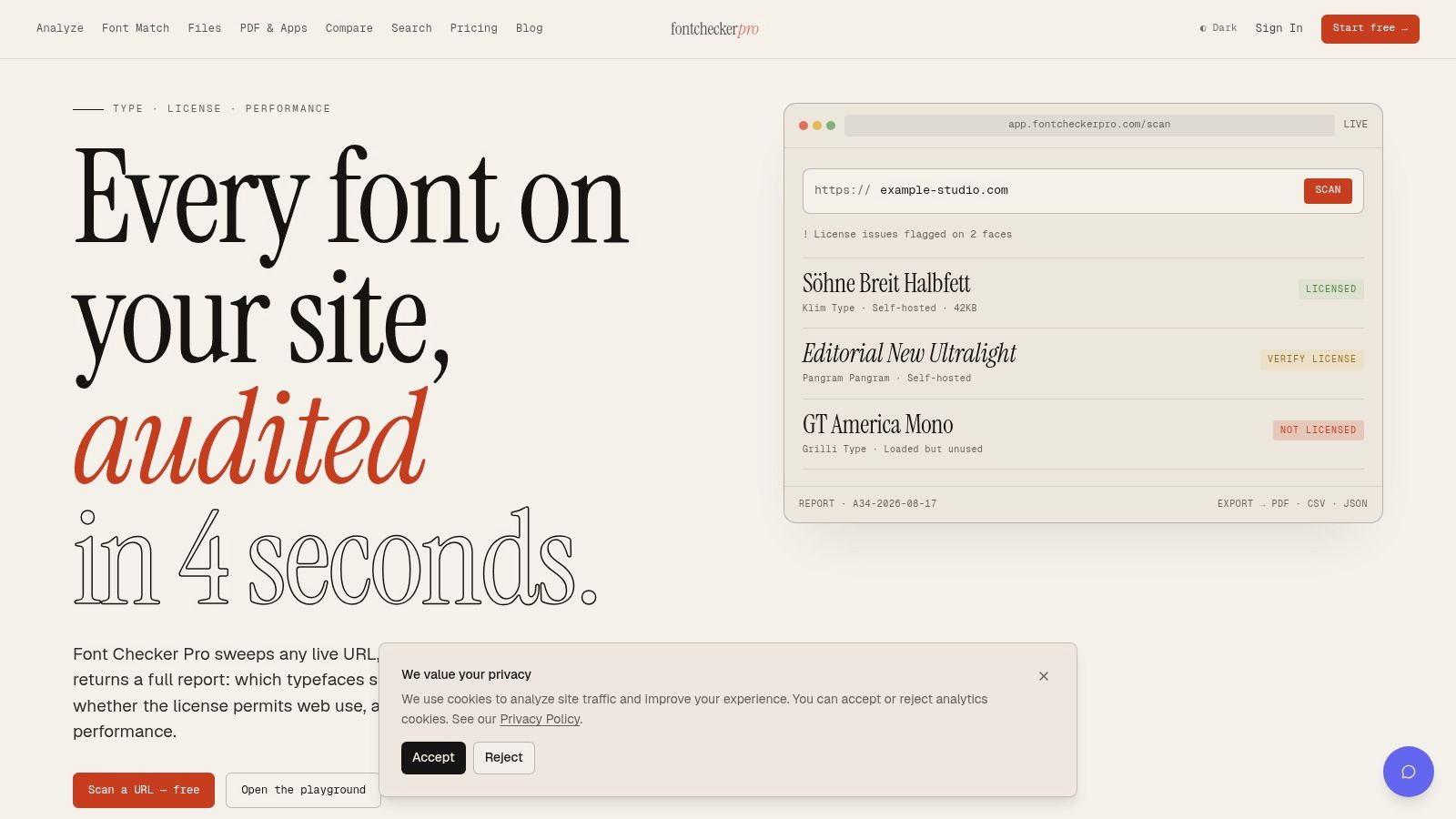
The practical answer is an audit trail that follows the asset from installation to document output. This font licensing guide for designers and developers provides useful context for building that review process. Font Checker Pro can scan Word files, PDFs, images, and zipped font sets, then produce an exportable report that records detected typography and embedding-related findings for a project.
Use the result as an operational control, not as a substitute for legal advice. Legal and compliance teams should review the underlying license and obtain professional guidance where the permitted use is unclear.
Font Checker Pro can help you inspect Word files for embedded fonts, compare document typography with the relevant licensing basis, and preserve an exportable audit record for client or compliance review. Visit Font Checker Pro to scan a document before handoff and make font portability part of your standard delivery checklist.