A designer just dropped a brand font onto a shared PC. Word still offers Calibri, the other account's font menu is empty, and the review starts in an hour. The file is on the disk. That is not the same thing as Windows exposing it.
The Fonts folder Windows keeps is really two stores plus a registration step and a cache. Scope decides who can see the face. Registration decides whether the system hands it to applications. The cache decides whether an already-open app notices. The license decides whether you may reuse it in a document, a site, or a client handoff. None of this is legal advice. It is the practical order I would walk a colleague through before anyone deletes or reinstalls anything.
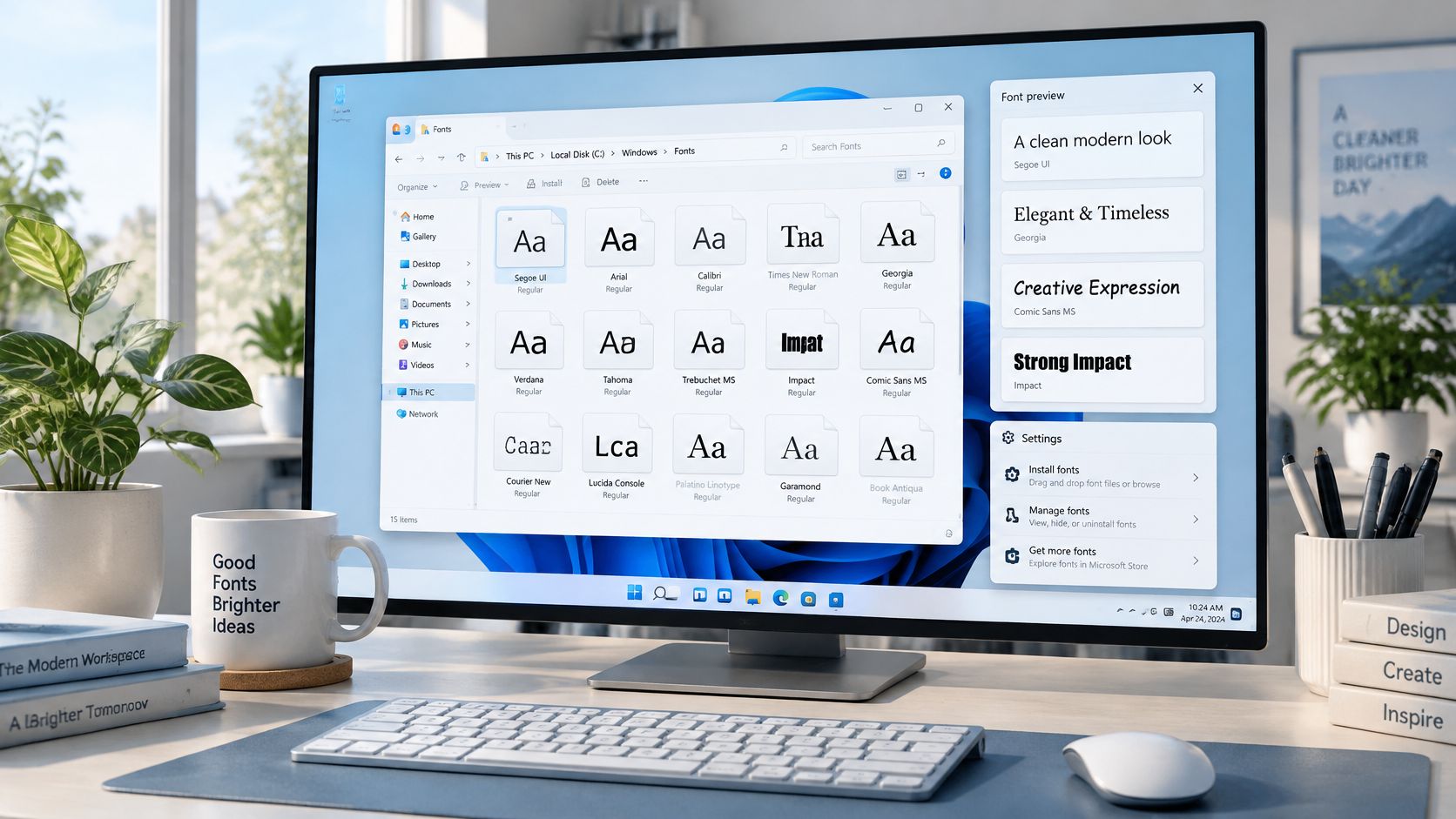
Find the Fonts Folder in Windows 10 and 11
Most missing-font tickets start with the wrong place. Match the store to the account before you copy another file.
| Location | Path or route | Scope | Use it to |
|---|---|---|---|
| System font store | C:\Windows\Fonts | All accounts on the PC | Install or audit machine-wide fonts; needs administrator rights |
| Per-user font store | %LOCALAPPDATA%\Microsoft\Windows\Fonts | One signed-in account | Install fonts without admin rights for a single user |
| Fonts folder shortcut | Win + R, type shell:fonts | Same view as the system store | Open the folder in one step |
| Settings app | Settings > Personalization > Fonts | Lists and installs for the current user unless you choose all users | Browse, install and remove fonts |
| Control Panel | Control Panel > Fonts | Same font list as Settings | Review the full font inventory on older setups |
C:\Windows\Fonts is the machine-wide store. Every account can read it, and changing it needs administrator rights. Microsoft's guidance on adding a font identifies that path as the standard location, and applications discover fonts through that administrative layer. A file on disk is not proof the face is active, registered, or visible in every session.
Press Win + R and type shell:fonts. That opens the same system view without browsing through Windows.
The per-user store sits at %LOCALAPPDATA%\Microsoft\Windows\Fonts. A standard user can install there with no admin rights. The face shows only for that sign-in, which is why a design app on a second account looks broken when the file is fine.
Settings > Personalization > Fonts is the friendly list for the current user, unless you choose the all-users option. Control Panel > Fonts shows the same inventory and is the view many older images still open.
Three questions you can run now
- Which account installed it: Sign in as that person before you call the font missing.
- Which scope it sits in: System store, or the per-user store under that profile.
- Whether both views agree: It should appear in the Settings list and in the folder you opened.
Treat the folder as the registry of what Windows exposes, not as a bin you fill and forget.
How to Install Fonts Without Breaking Applications
A clean install is a short sequence. Skipping the check, or copying without registering, is how a font looks present and then vanishes from the app that needs it.
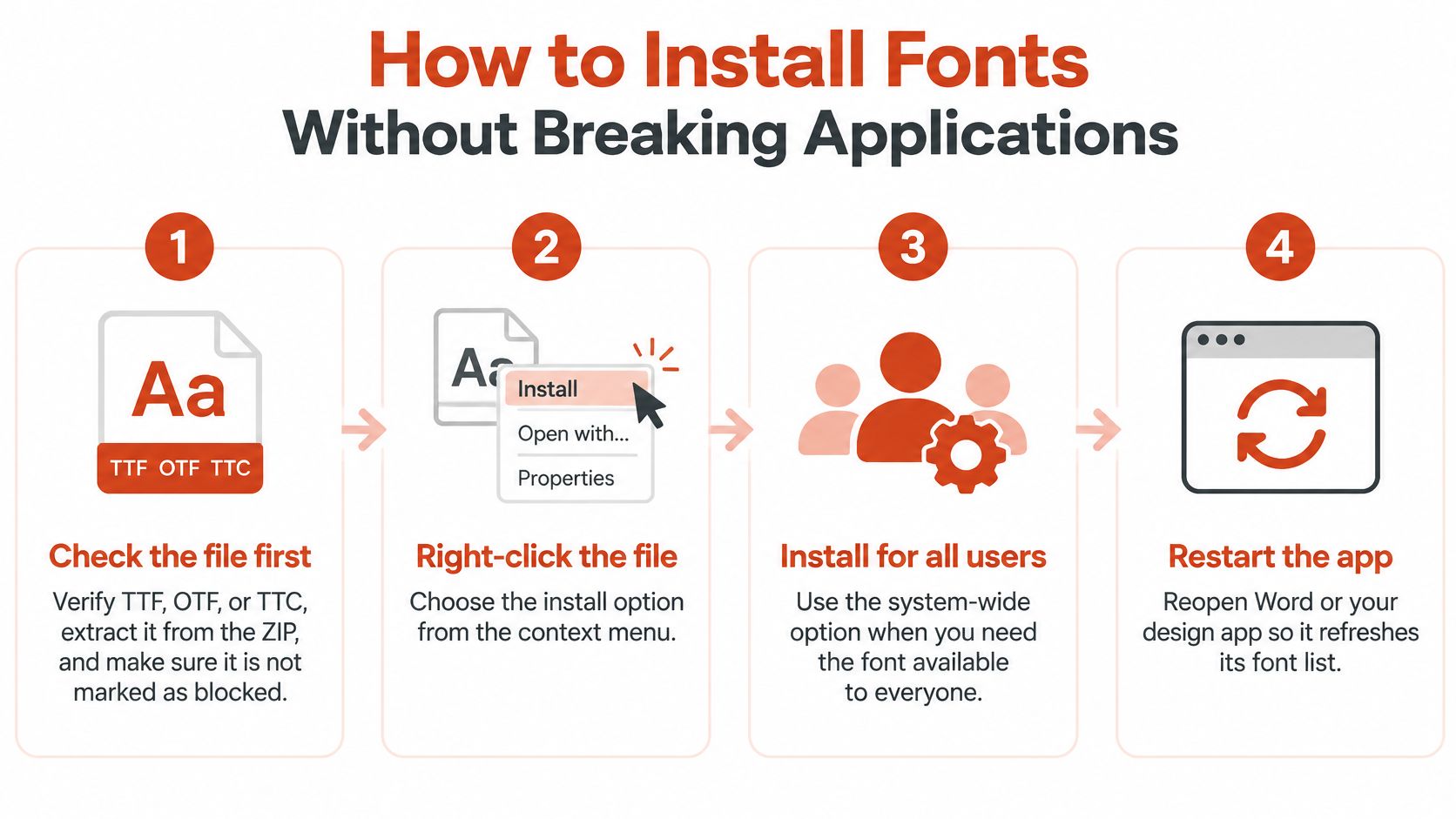
- Check the file first. It should be TTF, OTF, or TTC, already extracted from its ZIP. If Properties shows Unblock, clear that flag. A blocked download often never registers, and the extension tells you whether you are looking at a TrueType or OpenType package. Format details belong with how font files, licensing, and performance fit together, not with a guess from the icon.
- Right-click the file and choose Install for the current user, or Install for all users when you are an administrator and other accounts must see it. Per-user scope keeps a shared PC tidy. All-users scope is the one that writes into the system store.
- Dragging into the Fonts folder is the other route. It copies into the system store and asks for administrator rights. Microsoft's Win32 font installation documentation separates that copy from registration. A font meant to stay available after reboot can go in through Control Panel, or be copied to
%windir%\fontsand then registered withAddFontResourceorAddFontResourceEx. A file that is only copied becomes available after the computer is rebooted. - Confirm the family and every required style in the Fonts list, then open a document using them. Restart the application. If the face is still missing, reboot. On a terminal server, registration can expose the font to the current session while other sessions wait for that reboot.
Practical rule: Write down whether the font is per user, for all users, or loaded only for this session. Location and registration are separate problems.
If a bad install leaves an app unstable, roll the PC back with a restore point before you keep deleting font files. Use System Restore for PC recovery when you need that safety net, then reinstall once and verify.
Finish with one test line in every weight and style, opened in the app where the work will happen. These notes are technical, not legal advice.
Remove Fonts Without Damaging Documents
A removed font turns text in older files into substitute glyphs. Check which documents depend on the family before you delete anything.
- Save and close every application that uses the font. An open handle blocks deletion, and Windows will refuse the file while Word or a design app still has it loaded.
- Open the Fonts folder or the Settings list, find the family, and note every style and face. You want the full set, not only the regular weight you remember.
- Delete the file from the folder, or choose Remove in Settings for the matching entry. Remove the same scope you installed. A system font needs the administrator path.
- Restart those applications and confirm the family is gone from the font menu. A stale menu is not proof the file is still installed.
- Reopen two or three key documents and decide whether the substitution is acceptable. If it is not, put the font back before you ship the file.
Watch these traps:
- Another account is untouched: Removing a per-user font does nothing to fonts that account installed for itself.
- A half-broken family: Deleting one weight and keeping another leaves bold or italic unresolved.
- Shared designs: Point document styles at a replacement font before removal, and keep a backup of the font file with its license record.
Remove a font only after you know which documents depend on it.
Fix Fonts That Do Not Appear in Applications
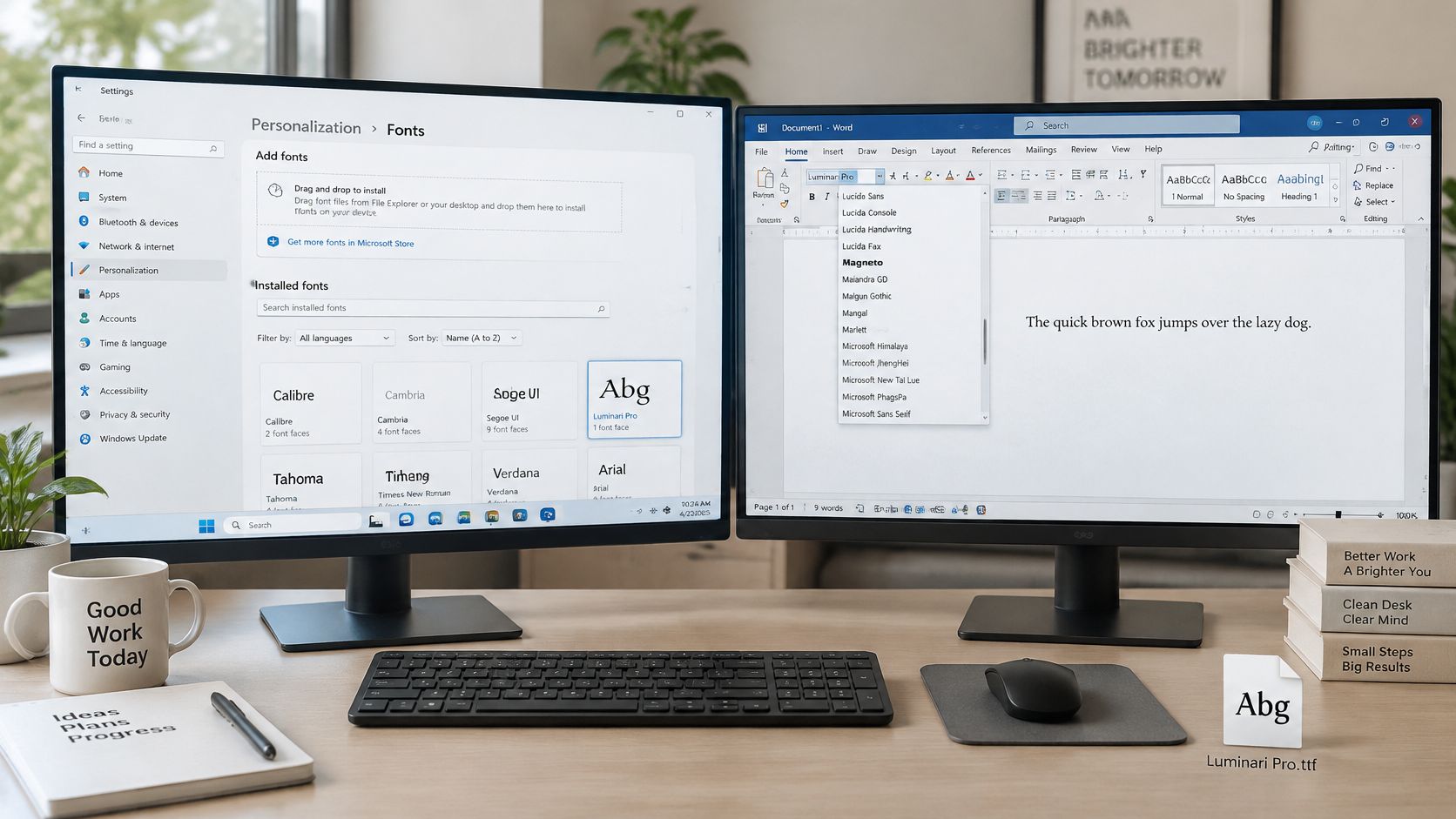
The usual case is simple. The font is listed in Settings and missing from Word or a design app. The file can sit on disk and in the Fonts list while the application still holds the font list it loaded at startup. Restart that app first. Reboot if the menu is still stale.
| Symptom | Likely cause | Fix |
|---|---|---|
| Font shows in Settings but not in Word | Application loaded its font list before the install | Restart the app; reboot if it still fails |
| Font missing from the Settings list | File not supported, blocked, or not registered | Check the extension, unblock the file and reinstall |
| Bold or italic missing while regular works | Only one style of the family is installed | Install every style file and compare the family in the font list |
| Font works for one user only | Installed in the per-user store | Reinstall for all users as an administrator |
| Windows refuses the font as untrusted | Untrusted-font protection is blocking it | Use a trusted system install or a documented exception, not a global disable |
If the menu is still wrong after a reboot, treat it as cache state. Microsoft community guidance on fonts that do not display notes that Windows caches installed fonts for performance, and a stale or corrupt cache can hide a font or a single variant. For Word specifically, the same pattern is covered in how to load fonts into Word on any device.
Rebuild the font cache
- Close every application that uses fonts.
- Stop the Windows Font Cache service.
- Remove the FontCache data under
C:\Windows\ServiceProfiles\LocalService\AppData\Local. - Restart Windows so the cache rebuilds.
Two audit mistakes show up here. Clearing only one user's installed-font records does nothing useful when the font was installed system-wide. Confusing a missing style with a missing family sends you hunting for a file you already have.
For a defensible check, compare the Settings inventory with the filesystem and with HKEY_LOCAL_MACHINE\SOFTWARE\Microsoft\Windows NT\CurrentVersion\Fonts. Then open a controlled test document that contains each required weight and style. That separates format, permission, registration, cache, and app compatibility without another blind reinstall.
Enterprise Font Control Across Shared and Managed PCs
A managed Windows build can have the right font package and still fail deployment: policy may block the files, the build machine may lack the approved package, or Intune inventory may not show what applications can use. Treat font control as a chain of policy, installation scope, registration, and records.

Windows can block untrusted fonts. Microsoft's documentation on blocking untrusted fonts describes the available approaches: install a trusted font in the system Fonts directory or configure a narrowly scoped process exclusion. Keep the policy in place unless an application has a documented need for an exception.
For each blocked font, identify the file and its source, then decide whether it belongs in the system store or a user profile. If an application still cannot use it, document the specific exception and the affected process. The record should show which file was installed, who approved it, where it came from, and how policy was handled.
Give administrator rights only when a system-wide install is required. On individually managed machines, use per-user installs where they meet the application's needs.
Record these details for every face:
- File name and format: Exact filename and whether it is TTF, OTF, or TTC.
- Version and source: Font version and the foundry, vendor, or internal package.
- Scope and path: Per user or all users, plus the destination folder.
- Who and when: Installing account and installation date.
- License reference: The agreement or ticket authorizing the use.
Test the approved package on the standard image, a CI or build machine, and a remote session. Compare the folder scan with the registry and the Settings list; differences can reveal a deployment or registration gap. Teams managing company devices with Intune can attach the font record to the device inventory. For a wider operating process, see this practical guide to font management for teams.
Check Font Licenses Before You Reuse Installed Fonts
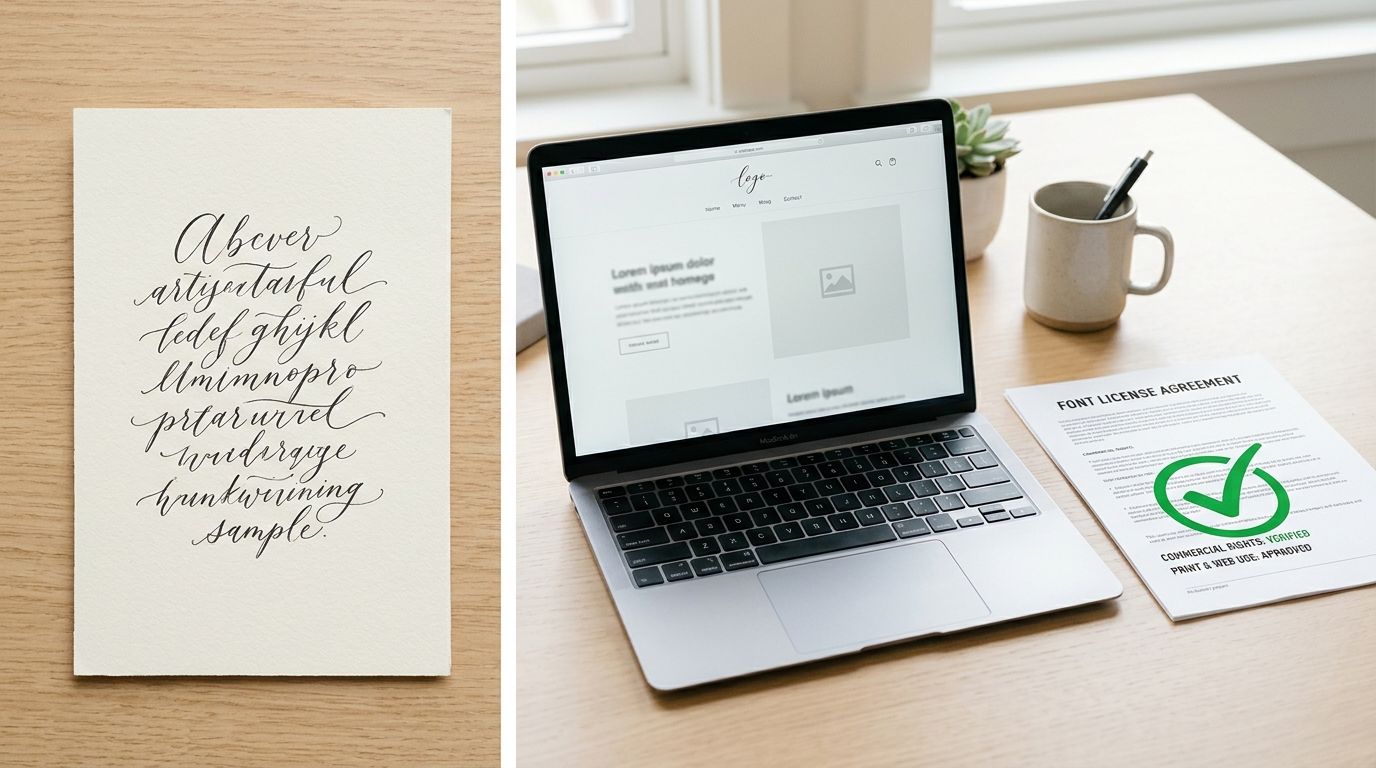
A font's presence in the Windows Fonts folder confirms that it is installed, not that every planned use is covered. Check the agreement against the work you intend to produce. Desktop use and web distribution have separate terms.
| Use case | Desktop install (Fonts folder) | Web use (self-hosted or embedded) |
|---|---|---|
| Designing documents, brochures and print work | Usually covered by the desktop end-user agreement | Not automatically covered; check the terms |
| Self-hosting font files on your own website | Not covered by the desktop agreement | Usually needs a web license from the foundry or an authorized reseller |
| Open-license families such as Google Fonts under the SIL Open Font License | Check the family's license terms | The license may permit web use; keep the license notice and check the family's terms |
| Sending font files to clients or vendors | Check the redistribution clause | Check embedding and redistribution rules before sharing files |
Adobe's font licensing guidance distinguishes desktop font use from web-font use. A desktop agreement may cover designing and developing documents, with limited embedding. Self-hosting font files on a website generally requires web-use rights from the foundry or an authorized reseller.
Open licenses, including the SIL Open Font License, can permit web use for a particular family. Keep the license notice and read the terms for that family. A font's presence in a ZIP file or catalogue does not establish that it is free to use.
Font Checker Pro does not license typefaces to customers. Identifying a face in a report does not grant permission to use it.
Before reusing a font, check the agreement for the intended use, including domains, pageview limits, embedding, app use, and redistribution. Use this desktop font license guide to review the terms, and track subscriptions across office devices alongside the relevant font agreements. This is informational, not legal advice. Review the foundry's terms for your specific use.
Audit Your Font Setup Before the Next Launch
Run this before the next release or client handoff. It is short, and it catches the gaps that show up in review.
- List every font the project uses, with file name, install scope, and license record.
- Confirm each family and style in the Fonts list and in a test document inside each target application.
- Check the desktop agreement and the web license for each intended use, including self-hosted files. The desktop agreement does not cover the site.
- Scan the live site or the uploaded font set for faces the team did not mean to ship.
For that last pass, Font Checker Pro can scan a public URL or an uploaded font set and return a report of the typefaces in use. Use the report as input. It does not replace reading the license yourself. File it next to the license reference in the inventory. A wider method for the same habit is the digital asset audit framework.
Pick one live project today. Run the four steps. Write the results into the inventory before the handoff, not after someone asks where the bold file went.
Font Checker Pro scans a live page, an uploaded font set, or an image and returns an audit report of the typefaces in use, so you can line that list up with what the Fonts folder exposes. Pair the report with your install scope and license record before you publish or hand files to a client. Start with one project at Font Checker Pro.