A client sends a PDF proof. The headline's font name looks familiar, but nobody on your team has it installed, and the next job is to adapt the design. A “PDF get font” search sounds like the obvious shortcut. Before extracting anything, separate what you can see from what the file contains, what you're licensed to reuse, and whether its text works.
What a PDF Font Check Can and Cannot Tell You
The proof opens correctly, so the designer assumes the typeface must be available inside it. That assumption has burned hours on more than one job I've handled. A PDF holds font resources, and those resources take three forms: a complete font program, a restricted subset, or an unembedded reference to a font the file never carried.
Names make this worse. Font resources can retain legacy formats from older production workflows, and two entries sharing one family name can resolve to different data. A name tells you what the file calls the font. It says nothing about what the file contains, which is why names, formats, embedding and subsetting each need their own check.

For that client proof, the audit splits three ways. Which font resources does the PDF contain, and are their definitions embedded? Is the intended reuse permitted? Does the text itself work? Selectable characters, outlined text and scanned content behave differently, and this guide to text detection from PDFs, OCR and font reports covers how to tell them apart.
Practical rule: Treat visual fidelity, reuse rights and text accessibility as separate audit results.
The useful deliverable is an inventory, not a family name copied into an email. Record a status for each resource, a rights decision tied to the intended use, and enough evidence for another reviewer to follow your reasoning.
How to List Every Font in a PDF
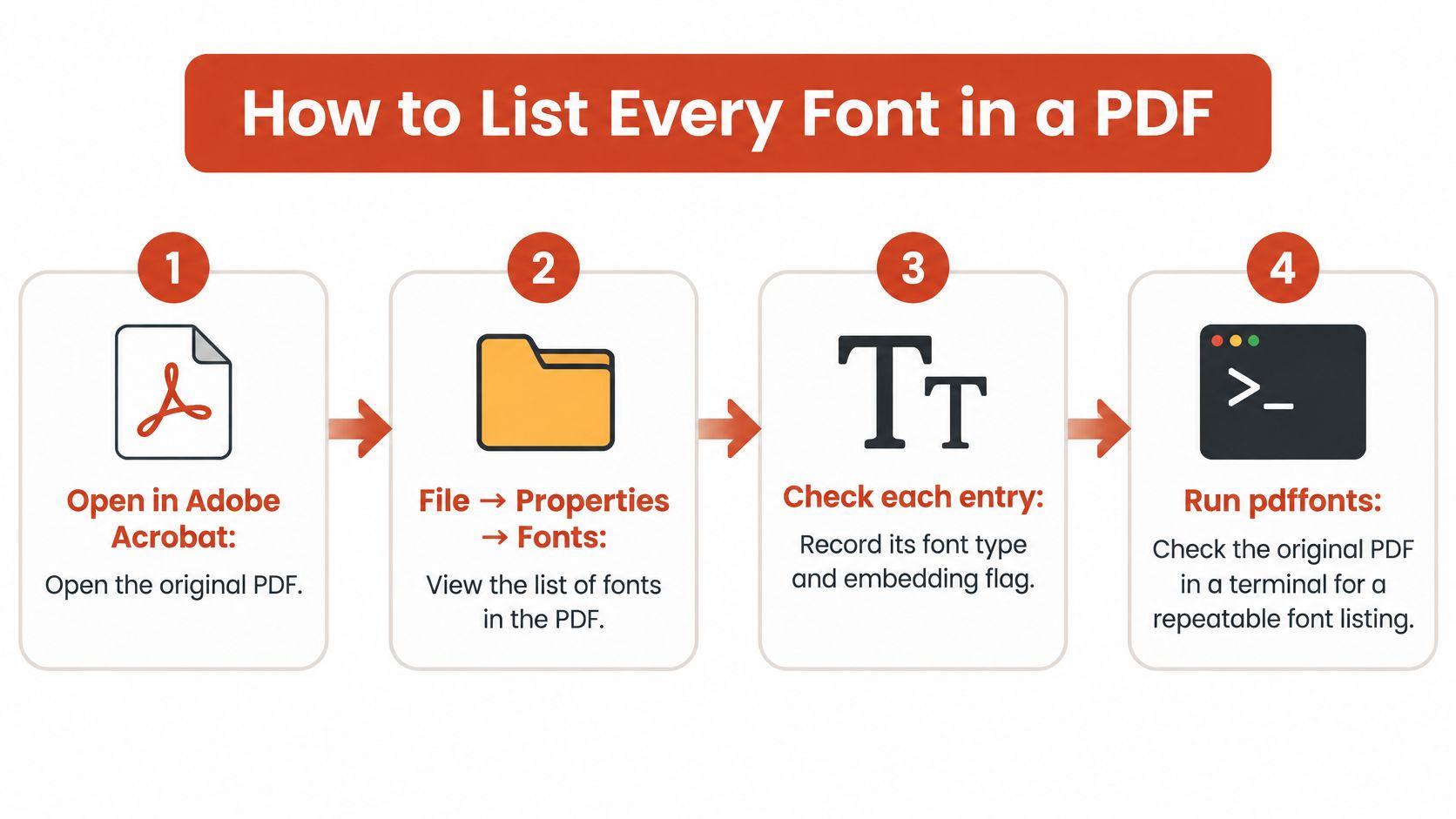
Start with the original production PDF and preserve it unchanged. Use the viewer for orientation and a command-line inventory for the repeatable record.
- Open the font list. In your PDF viewer, check the document properties or font panel. Note each entry's type and embedding description.
- Run the inventory. Point a PDF font inventory utility at the file, for example
pdffonts original.pdf. Read the output fields together: name, type, encoding, embedding, subset, Unicode-map status and object ID. - Protect the evidence. Don't substitute a re-saved or regenerated copy for the original under review.
- Keep duplicate rows. A family may appear as separate subset resources. Preserve their distinct object IDs.
- Check the page context. Select a suspicious word and correlate its page and font resource, rather than assuming every similar-looking word uses the same resource.
- Save the output. Keep a text report beside the PDF, labelled with the filename and audit date.
Inventory traps
An inventory of a client proof might return rows like these:
ABC123+BodySerif    Type 1   emb=yes  sub=yes  uni=yes
DEF456+BodySerif    Type 1   emb=yes  sub=yes  uni=yes
QRS789+DisplaySans  Type 3   emb=yes  sub=yes  uni=no
Two subset prefixes make those serif rows separate resources, not a duplicated font. Read the Type 3 row as drawn artwork and investigate it on those terms. Treat uni=yes as a lead for checking copied text, and verify a sample by hand before relying on it for accessibility or downstream conversion.
Finish with every reported resource tied to its object and, where established, its page references.
Reading Embedding Status and Subset Tags
Embedding describes whether font data sits inside the PDF. Subsetting describes how much of the font was retained. Read those fields together before deciding whether extraction is even a meaningful next step.
Embedding status and what each one means
| Status | Signal in pdffonts | What it means | Reuse implication |
|---|---|---|---|
| Embedded full font | emb=yes, sub=no |
Complete font program stored in the file | Strongest candidate to inspect, still subject to licence |
| Embedded subset | emb=yes, sub=yes, subset prefix |
Only glyphs used in the document are stored | Partial coverage cannot reconstruct the complete typeface |
| Not embedded | emb=no |
The file references a font supplied by the viewing environment | Nothing to extract; substitution may alter layout |
| Type 3 artwork | type=Type 3 |
Glyphs are PDF drawing procedures | Treat as artwork, not a conventional reusable font file |
| Unresolved | No confirmed matching font stream | Descriptor exists but no font stream can be matched | Investigate before making a claim |
A fully embedded font is the strongest technical candidate because its complete program is present. That still doesn't identify the original desktop package conclusively or establish permission to install it.
An embedded subset can render the proof perfectly while containing too little material for another design. Its internal name commonly carries a generated six-letter prefix followed by a plus sign.
Prefixes alone prove nothing about family identity. Generating tools assign them at creation time, so the same family can surface under different prefixes in different files, and identical prefixes can appear on unrelated fonts. Before treating two prefixed names as separate families, compare the glyph coverage and the PostScript name recorded in each font descriptor. Matching PostScript names and overlapping glyph sets point to one family; mismatched names justify separate rows in your audit.
Read format separately from availability
An unembedded reference offers no font program to recover. For Type 3 or unresolved resources, retain the object evidence and investigate the document structure instead of renaming an extracted object with a familiar font extension.
Record the PDF version too. Older production files can carry older font types, while later PDF versions support additional embedding technologies. For the distinction between the underlying formats, consult the practical OpenType versus TrueType guide.
The status tells you what the file can supply. The licence tells you what you may do with it.
For handoff, keep the original resource name alongside any normalized family name. That preserves the connection between your readable report and the actual PDF objects.
Checking Embedding Rights Before You Reuse a Font
An agency receives a brochure PDF, and the web team wants its headline typeface on the company site. The designer assumes it is ready to use because the brochure displays correctly. Rendering the brochure correctly proves the font is installed on the sender's machine or embedded for viewing. It says nothing about the web team's right to serve it.
This is the rights leg of the audit. Visual fidelity was answered upstream; the question here is what the foundry's terms allow. Embedding preserves document appearance across systems, while a desktop EULA may permit protected viewing and printing yet require separate rights for websites, applications or other distribution.
Desktop and web rights are different
A desktop licence typically covers installation for specified users and creation of static materials, including logos, print layouts and PDFs. A webfont licence covers serving font files through CSS @font-face, often with domain and page-view conditions. A desktop purchase alone does not authorise serving the font on a website.
Before approving reuse, check:
- Embedding and modification clauses. Read the applicable EULA, not just the font metadata.
- Delivery purpose. Distinguish a viewing or printing PDF from editable font access.
- Recipient access. Establish whether the recipient needs to edit with the typeface.
- Template use. Check whether the document will generate new variations or dynamic content.
Receiving a properly embedded document is a different position from holding fonts you can install and edit with. Keep that distinction explicit in client handoffs, and work through the tiers in this guide to font licences for commercial use before you sign off.
FontCheckerPro can record the font inventory and licence-tier findings in an exportable review record. The actual EULA and intended use still need human review.
Possible exposure includes an unbudgeted webfont-tier invoice, demands for back-licence fees, or a requirement to remove or replace the typeface. The circumstances and applicable terms determine the outcome in each case. This content is informational, not legal advice.
Extracting an Embedded Font Stream Only When Cleared
Extract only after the reuse-rights check has cleared the file for that purpose. A descriptor can supply names, flags and metrics, but the embedded program is the only artifact that can show what shipped. Treat this step as the visual-fidelity and accessibility part of the audit: you are confirming format, coverage potential and recoverability; licence scope stays in the rights check.
- Confirm eligibility. Require
emb=yesplus documented permission. Keep a subset as reference evidence and as a clue to shaping, not as a desktop replacement for editing. - Locate the descriptor. Dump object
Nfromoriginal.pdfwith a PDF object inspector, replacingNwith the font object number. FollowFontDescriptor; composite resources may require following a descendant font first. - Find the stream. Inspect
FontFile,FontFile2orFontFile3. Those entries point to the embedded definition, while the descriptor remains metadata. - Decode the data. Write the filtered stream data for object
Stofont.bin, replacingSwith the embedded stream number. - Validate before trusting. Match the decoded bytes to the declared subtype:
| Declared subtype | Expected signature |
|---|---|
| TrueType | 00 01 00 00 or true |
| OpenType CFF | OTTO |
| Type 1 | %!PS-AdobeFont or %!FontType1 |
| Bare CFF | commonly begins 01 00 04 |
A bare CFF stream is not automatically a desktop font container.
- Preserve and isolate. Compute a SHA-256 hash, retain the PDF hash and object references, and test in a sandbox before any installation is considered.
Log the result as recovered data, then keep the permission file beside it. If no corresponding stream exists, the descriptor alone cannot reconstruct the font.
Fixing Missing or Unavailable Font Details
When a font check returns gaps, record which part of the audit failed before choosing a remedy. The gap sits in one of three places: absent data, incomplete glyph coverage, or broken character mapping. Each calls for a different fix, and asking the sender for "the font" resolves none of them on its own.
Retrieving a resource also leaves questions open. An extracted stream may let you read the glyphs while still giving you no reuse rights, no link to the commercial release, and no usable text semantics for search or screen readers.
Symptoms, likely causes and fixes for font details
| Symptom | Likely cause | Fix |
|---|---|---|
Font listed with emb=no |
Font isn't embedded; the viewer may substitute it | Ask the sender for the source file or a PDF exported with permitted font embedding |
| Subset font won't edit or rebuild | Subset holds only characters used | Request access to the full font through an appropriately licensed owner or designer |
| Copied text shows wrong or garbled characters | Missing ToUnicode map or faulty encoding |
Re-export with correct Unicode mapping, or use OCR where appropriate; swapping typefaces leaves the map broken |
| Type 3 font with no conventional font file | Glyphs are drawn as procedures | Treat as artwork and request the original design file |
| Font name shown but no usable data | Font streams may be encrypted or malformed | Re-export from the source and inspect security settings |
| Search or screen reader fails on correct-looking text | Text may be outlined or rasterized | Recreate and verify a text layer through OCR, or re-export the source |
Repair the cause behind the symptom
Fix the character map, not the typeface. Installing a lookalike font changes how the page renders while copy-paste, search and assistive reading keep failing. Accessible PDF text depends on a stored mapping from each glyph to a Unicode value, and that mapping lives inside the PDF itself.
Test a representative headline, a body paragraph and any unusual characters. Copy them into plain text, search for known words, and check reading output where accessibility matters. Record visual rendering and text extraction as separate findings, since a page can pass one and fail the other.
The PDF font display troubleshooting guide lays out rendering checks that stay separate from rights clearance. If OCR becomes necessary, verify its output against the page before trusting the new text layer.
You can inventory resources, test copying and document symptoms yourself. Licensed font programs, damaged exports and source-level encoding repairs sit with the sender or document owner, so name the specific missing item when you ask.
Recording the Audit Before You Act
Assign an operational outcome to each resource before handing the PDF onward. Keep the technical embedding result separate from this decision, so the next reviewer can distinguish evidence from authorization.
- Identified. The font is named, fully embedded and cleared for the documented use. Retain the supporting evidence.
- Partially embedded. Request the full, appropriately licensed font before editing.
- Not embedded. Extract nothing. Obtain an authorized source or use a documented substitute.
- Not safely reusable. Stop and ask the owner or licensor to resolve missing permissions or uncertain attribution.
Keep evidence with the decision
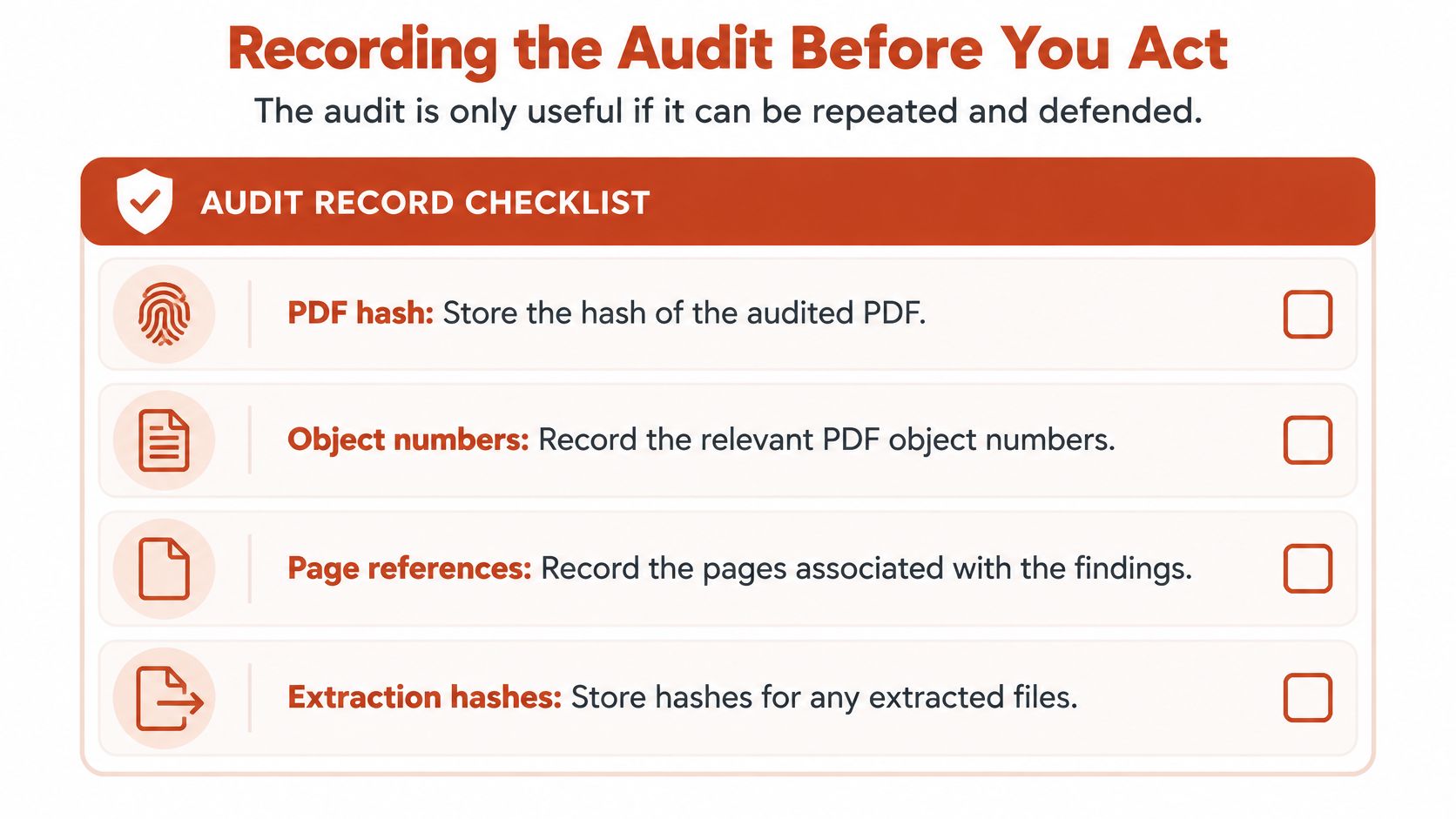
Store the PDF hash, object numbers, page references and extraction hashes beside the inventory. Include the intended use, relevant licence record, reviewer and unresolved questions. An audit trail with a clear purpose lets another person reproduce the review instead of relying on an approval email.
For campaign teams coordinating typography with broader approvals, Sprello's resource on brand checks for beauty campaigns gives useful process context to keep alongside the font-rights review.
Before delivery, confirm that each of the three audit results from the start of this review is written down with its evidence attached. Then assign a named owner to every unresolved item, so nothing carries into editing or publication by default.
Keep the original evidence intact when a corrected PDF arrives, then inventory the replacement separately. That prevents an approval for one file from being applied to another without notice.
Route the finished record to whoever controls release: the production lead in a studio, or the brand and compliance contact on the client side. Their sign-off closes the audit, and the record travels with the file.
Font Checker Pro offers PDF font inventories and exportable typography reports to support this review. Visit Font Checker Pro to check your PDF and keep its font findings together before approving reuse or handing the document to a client.