Font display swap makes the browser show fallback text immediately, then replace it with the web font once it downloads, trading invisible text for a possible layout shift. You've probably seen both sides of that choice, a page that stays blank waiting for type, and a page where readable text suddenly jumps when the brand face arrives. That second moment is where your real decision lives.
What font-display Swap Does in Plain Terms
Font display swap tells the browser not to wait for the font file before showing text. It paints the page in a fallback typeface right away, then swaps in the web font as soon as the file is ready.
That choice resolves FOIT, the flash of invisible text, the blank gap visitors stare at while a font loads. In exchange you accept FOUT, the flash of unstyled text, the visible moment when one typeface becomes another. The fallback works like a stand-in actor: it opens the play and delivers every line until the lead arrives, then steps aside mid-scene.
Swap leaves the download itself untouched. What changes is what the visitor sees during the wait and whether text shifts when the intended face lands, which makes this a layout-stability decision as much as a rendering one.
Every value in the family balances two timers. The block period is how long text may stay invisible; the swap period is how long the browser may still swap in a late font. The ranges below are the defaults browsers implement, documented in Chrome's overview of font-display history and behavior.
| font-display value | Block period | Swap period | What the visitor sees |
|---|---|---|---|
| block | Up to 3 seconds | Unlimited | Invisible text until the web font arrives, then the brand face |
| swap | Extremely short, about 0 seconds | Unlimited | Fallback text at once, then the web font when ready |
| fallback | About 100 ms | About 3 seconds | Very brief invisibility, then fallback, with a swap only if the font arrives quickly |
| optional | About 100 ms | None | Fallback unless the font is ready almost instantly, so no late swap |
| auto | Browser default | Browser default | Varies by browser, often close to block |
Before this property existed, browsers handled the wait in very different ways, some hiding text while others showed a fallback immediately. Swap formalized the most availability-oriented choice, and it keeps text readable across the widest range of network conditions.
Choose swap when readable text matters more than exact typography on the first paint.
How the Block and Swap Periods Play Out
Follow one page load and the timing stops feeling abstract. First, the browser parses your HTML and CSS and finds a font-family that needs a web font file. It then starts the request, which waits on DNS lookup, connection setup, and extra handshakes if the font lives on another origin.
Here's the moment that matters. With swap, the block period is almost zero, so the browser paints fallback text right away and your page is already readable. The font file keeps downloading in the background, at a speed shaped by compression, mobile signal, and distance from the server. WOFF2 usually arrives sooner than older, larger formats.
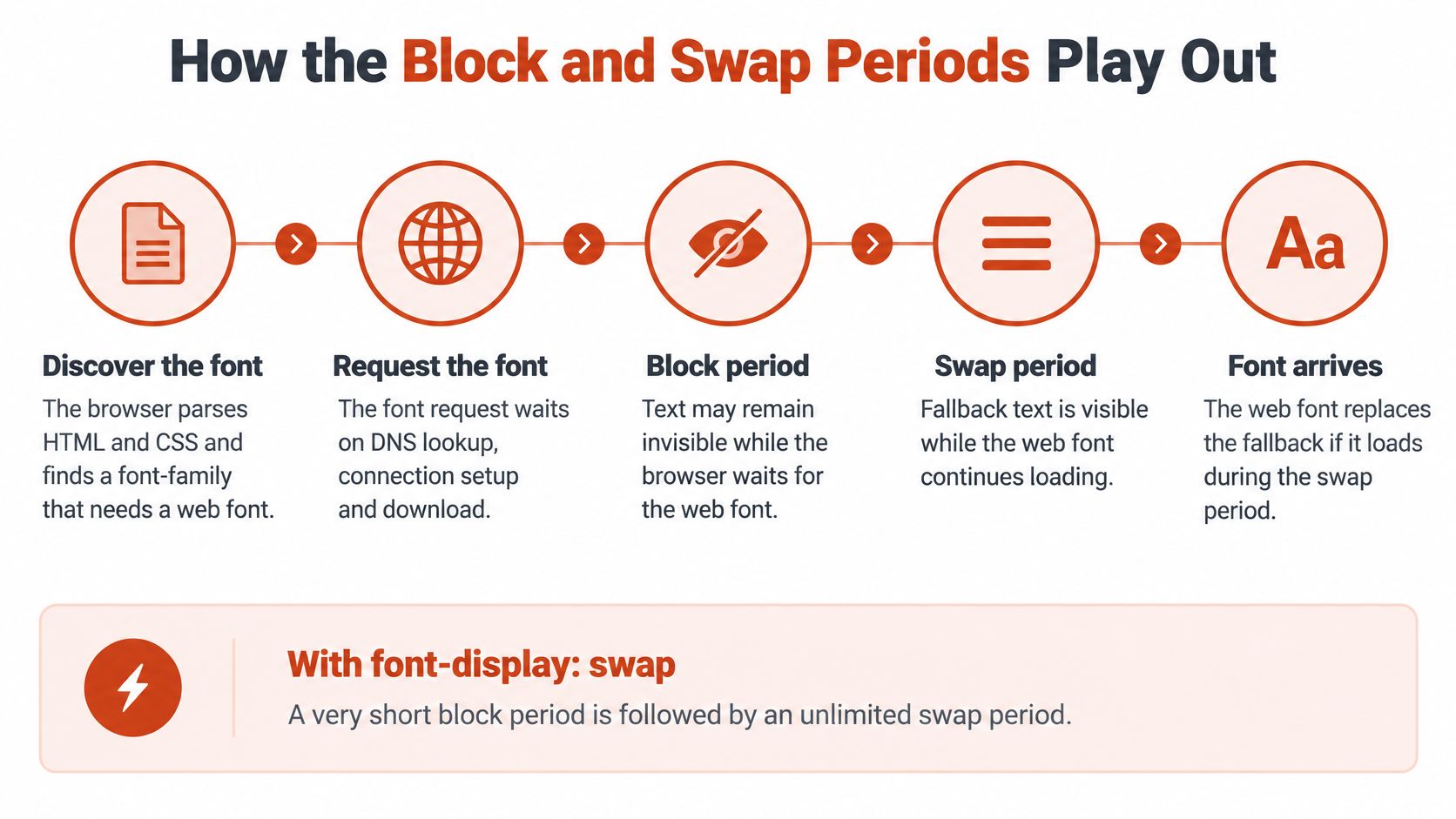
Once the download finishes, the browser decodes and activates the face, then replaces the fallback glyphs with those from the downloaded font. That replacement is the swap your visitor sees.
One detail surprises people. The timeline starts when the browser first tries to use that particular font face, not when the page opens, a point MDN's font-display reference makes explicit. A font used only in a footer or a late-appearing banner can therefore swap long after the top of the page settled.
Because the swap period is effectively unlimited, there's no deadline after which the browser gives up. A slow font can still replace text well after first paint, which is helpful for consistency and risky for stability. MDN also records the feature as available across browsers since January 2020, so you're relying on mature behavior, not an experiment.
Licensing Checks Before You Self-Host Swapped Fonts
A common assumption trips teams up here. Buying a font for design work doesn't automatically let you put its files on your web server.
Web and desktop licenses are separate categories. A desktop license works like permission to print the font in a brochure you designed. A web license is permission to broadcast it to every visitor, and it usually comes with conditions on permitted domains, pageviews, self-hosting, or an active subscription.
The subscription condition is the quiet tripwire. When a subscription-based web license lapses, the files on your server can become unlicensed while they keep getting served on every visit. A site in that position can face a takedown demand or retroactive license fees.
License scope also decides how much of the swap you control. Self-hosting keeps the font's delivery chain in your hands, so caching and timing are yours to tune. A hosted-only license inserts a third-party server between your page and the font file, adding a link in the timeline you cannot adjust.
Your Pre-Launch Checklist
- License type: Confirm you hold web rights, not only desktop rights.
- Permitted domains: Check every production and staging domain is covered.
- Subscription status: Verify coverage stays active while files are served.
- Self-hosting clause: Confirm uploading files to your server or CDN is allowed.
Open-licensed fonts carry conditions too, such as keeping license files and renaming modified versions, so don't call any font free or safe without reading its terms. Our guide to font licensing for websites and what teams need to know walks through the categories in more depth. This is informational guidance, not legal advice.
How to Add font-display Swap to @font-face
Before step one, confirm your license permits self-hosting using the checklist above. Then work through these steps in order.
- Gather only the files you use. Prefer compressed WOFF2 and list the exact weights and styles your pages render. Shipping unused variants adds requests nobody needs.
- Write one @font-face block per face. Set font-family, src, and accurate font-weight and font-style values. Mislabeled weights make the browser fake bold or italic text.
- Add font-display swap inside each block. The descriptor belongs in the @font-face rule, not on an HTML element, as MDN's guidance on where the descriptor belongs specifies. Put it on an element and nothing happens.
- Add unicode-range for subsets. Splitting Latin, Cyrillic, or other scripts means the browser downloads only the subsets a page contains.
- Build a deliberate fallback stack. Follow your brand face with a metrically similar system font, then a generic family. A careless stack is where jarring swaps come from.
- Preload sparingly. Preload only the one or two fonts needed above the fold, with as, type, and crossorigin set correctly. Preloading everything competes with your most important content.
- For hosted fonts, use the URL parameter. Adding display=swap to the CSS URL applies the same behavior without hand-written rules.
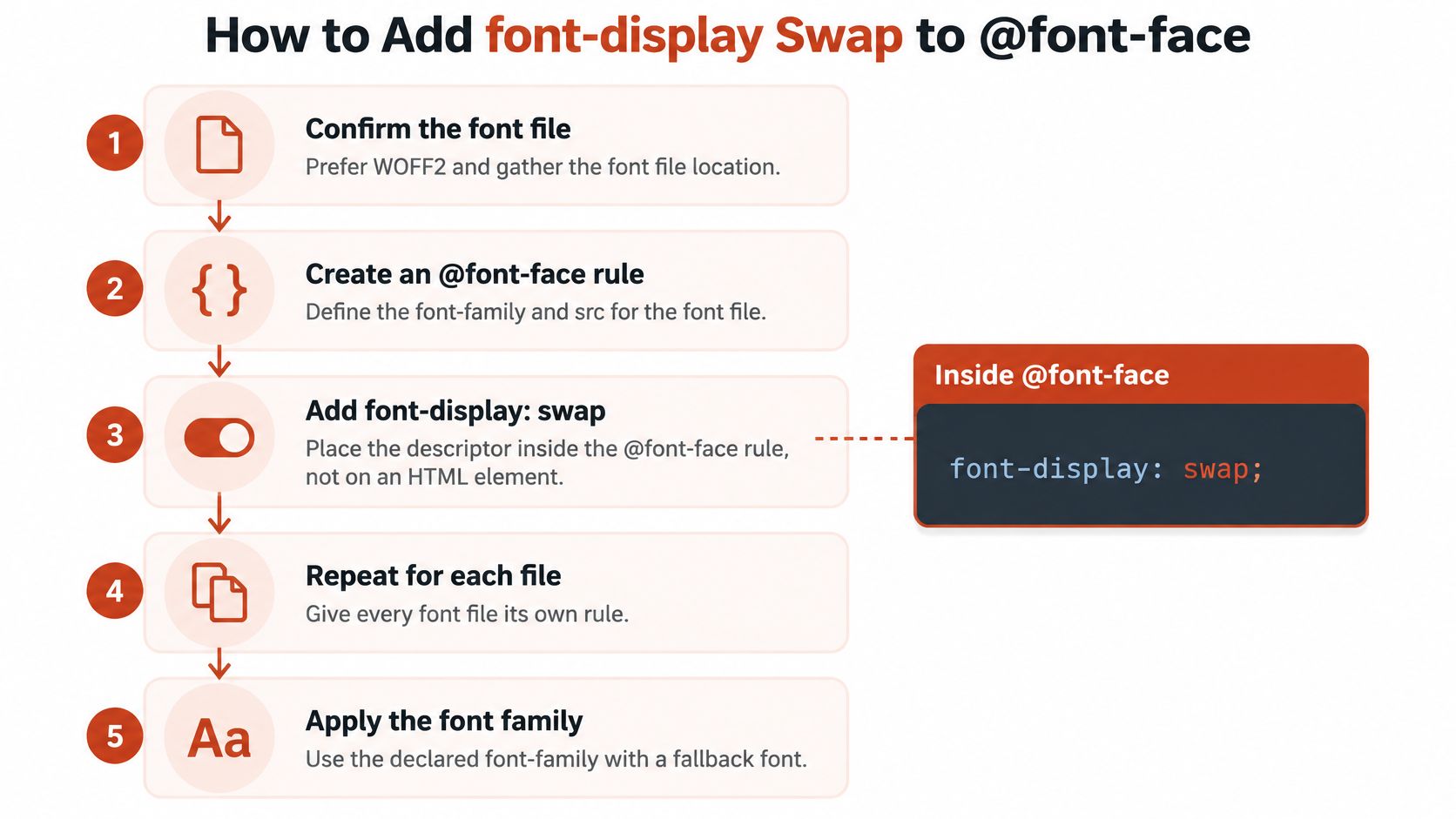
A minimal rule looks like this in prose form: an @font-face block naming your family, pointing src at the WOFF2 file, declaring its weight and style, and ending with font-display: swap;. After saving, check the computed result in DevTools to confirm the rule loaded as written. If you're moving hosted fonts onto your own server, a practical guide to self-hosted Google Fonts covers the file preparation side.
Why Swap Trades Invisible Text for Layout Shift
Swap doesn't remove a problem. It moves it.
When the web font replaces the fallback, the two faces rarely occupy identical space. Differences in line height, x-height, ascent, descent, and kerning mean lines re-wrap, headings grow or shrink, and content below them shifts position. The metric that captures this movement is Cumulative Layout Shift, or CLS, and lower is better.
That's why swap isn't automatically a performance win. Chrome's Lighthouse documentation on font display explains that swap can improve First Contentful Paint and Largest Contentful Paint by rendering fallback text immediately, while the later replacement can still hurt CLS. You have to check both sides, not just celebrate the faster first paint.
Matching Your Fallback Metrics
CSS gives you descriptors that reshape a local fallback face so it occupies nearly the same space as your web font. Applied to the fallback, they shrink the visible jump at swap time.
| Descriptor | What it corrects | Where the value comes from |
|---|---|---|
| size-adjust | Scales fallback glyphs so their x-height matches the web font | Ratio of the two x-heights, usually written as a percentage |
| ascent-override | Matches the space above glyphs inside each line | Web font ascent divided by units per em, from the font's metrics |
| descent-override | Matches the space below the baseline | Web font descent divided by units per em, from the font's metrics |
| line-gap-override | Keeps line spacing stable after the swap | Line gap from the font's metrics, or 0% when the font has none |
These values come from the font's own metric tables, which font tools can report or you can calculate from the two files. A small mismatch in body text may pass unnoticed, while the same mismatch on a large headline changes its height and pushes everything beneath it. Multilingual pages need this matching checked per script, since fallback availability varies by operating system. The interaction between these performance choices and licensing exposure is covered in our breakdown of web font performance and licensing risks.
Choosing Swap, Optional or Block by Font Role
Consider a news site. It loads a brand headline face, a body face, an icon font, a decorative script in one banner far below the fold, and a font from a third-party host. Giving all five the same value ignores the job each one does.
Failure paths matter here. The CSS Fonts specification's description of the swap timeline describes fallback text showing until the font becomes available, but if a request fails or stalls, your visitor may read fallback typography for the entire session. A very late swap can be more disruptive than no swap at all.
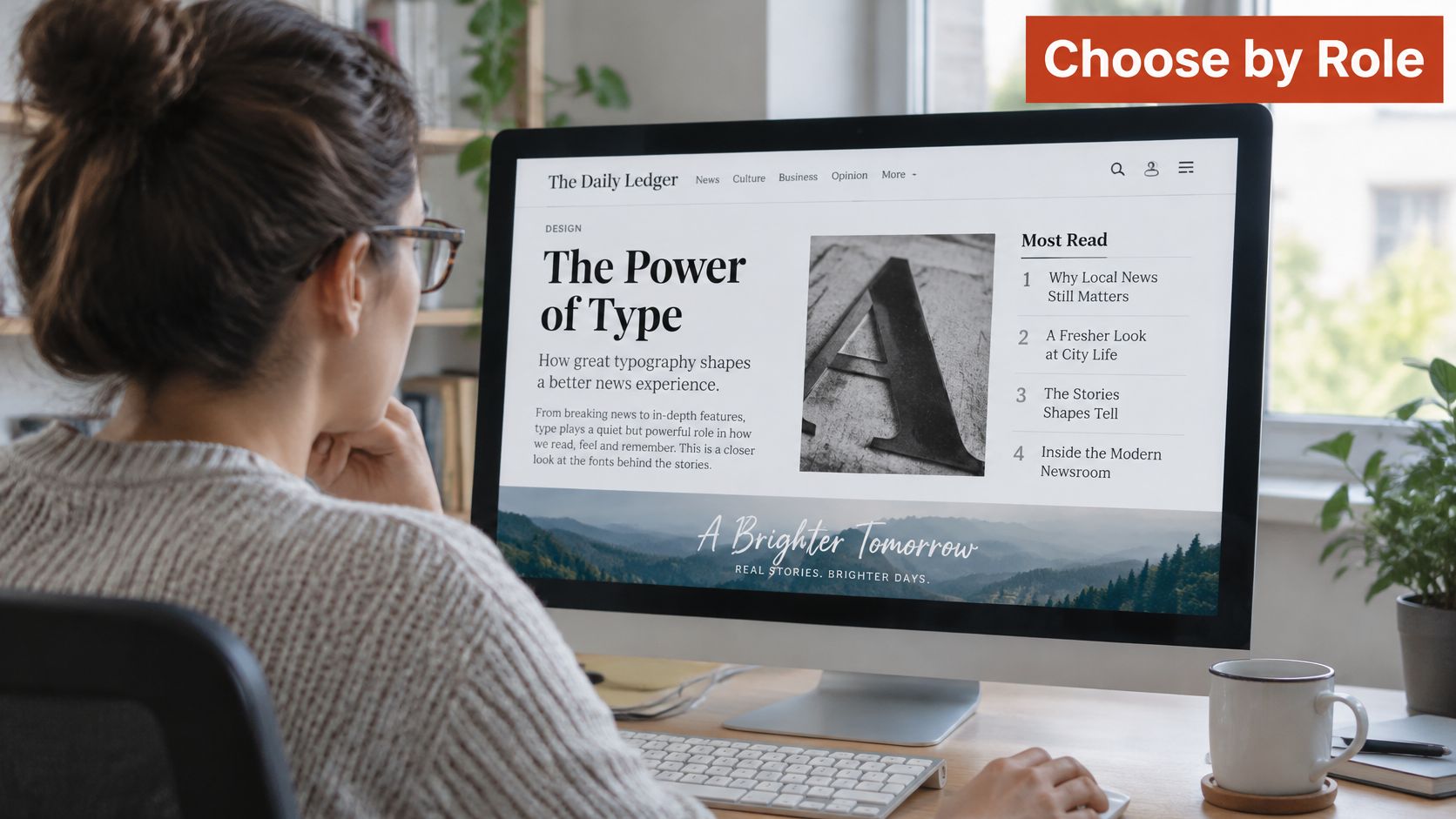
| Font role | Recommended value | Why it fits | Main risk |
|---|---|---|---|
| Body copy in articles | swap with a metric-matched fallback | Text is readable at once | Paragraph reflow if metrics differ |
| Brand headline above the fold | swap with a preloaded font | Brand face arrives early on most loads | Headline wrap shift after the swap |
| Icon font | Inline SVG, or block | Avoids stray letter codes shown as stand-in text | Boxes or letters before the font loads |
| Decorative script below the fold | optional | Skips a late swap on slow connections | Visitors may never see the brand face |
| Font from a third-party host | swap with monitoring | Keeps text readable if the host fails | Fallback stays for the whole session on failure |
Content-critical faces justify preloading and a carefully matched fallback. Decorative faces are often better left fallback-only with optional. Icon fonts are the exception to every rule above, since swapping them can flash stray letter codes, so inline SVG usually beats any value. For the fallback side of these decisions, our explainer on web safe fonts for faster, reliable sites covers dependable system choices.
Test Font Display Behavior Step by Step
A line of CSS proves nothing about what your visitors experience. You have to watch the load happen.
- Throttle the connection. Open DevTools Network, filter on Font, and pick a slow mobile profile.
- Log every request. Reload and note each font's start time, duration, and size, plus any that arrive late.
- Trace the paint. Record a Performance trace and find when fallback text paints and when the web font replaces it.
- Compare screenshots. Capture both moments and check line breaks and heading height side by side.
- Run Lighthouse on mobile. Read the font display audit alongside CLS, since guidance on preloading and optional fonts identifies swap, optional, and fallback as values that keep text visible during loading.
- Simulate failure. Block the font host in DevTools and confirm the fallback stays readable and the layout holds.
- Check field data. Compare real-user CLS for the same pages against your lab result.
- Repeat across platforms. Run the test on Windows, macOS, and Android because system fallbacks differ on each.
Record payload, load order, fallback stack, and any measurable shift in a short log you can rerun later.
Confirm Swap Works on Your Pages Before Launch
Swap passes review when two things hold on real pages: text stays readable while the font loads, and the layout barely moves when it arrives. Lab tests prove both under controlled conditions, but production adds variables you cannot rehearse, like a stale stylesheet on a CDN edge or a subset file that only fails in certain locales.
So do one thing before you ship. Run the timeline test on your most-visited template under slow mobile conditions and save the log with your release notes, so the next release has something to compare against.
Launch rule: If field CLS after release doesn't match your lab result, revisit fallback metrics and preload order before blaming the font files.
The license record for every file you serve belongs in that same log, confirmed before release rather than chased afterward. This remains informational guidance, not legal advice.
For the inventory side, our practical audit guide to checking fonts on a website shows how to document what's live. Keep that inventory alongside your shift readings as the baseline for the next font change, so future swaps start from evidence instead of memory.
Before your next release, scan your live pages with Font Checker Pro to inventory every typeface and font file your site serves, including the ones behind your font display swap rules. The resulting report gives your team a shared starting point, so fallback stacks, self-hosted files, and license records get checked together instead of in separate passes.