You've added a font preload, but the page still flashes into its custom typeface after it loads. In DevTools, you may even see the same font downloaded twice. The fix often isn't another hint. It's checking whether the font is needed at first paint, whether the preload matches the CSS request, and whether your license permits serving that file on the web.
Preloading fonts is a bandwidth budget decision, not a default performance setting. A good preload starts the right font early enough to help visible text. A bad one competes with the CSS, images, and scripts that also need to render the page.
Which Fonts Deserve a Preload Slot
A hero headline appears in a fallback font, then shifts when the custom face arrives. Start your audit by identifying which typefaces paint in the first viewport. Check the page with the browser cache disabled at 375 by 667 and 1440 by 900. Note the faces used by visible navigation, the hero headline, body copy, and any icon font. A visible face is a candidate, not an automatic preload.
For a typical marketing page, start with two or three faces: body regular and, if the hero uses it, a display weight. Add another only when a specific first-viewport element requires it. Match each face to the text it renders, rather than preloading every weight listed in the CSS.
| Font face | In first viewport? | Preload? | Reason |
|---|---|---|---|
| Body regular, WOFF2 | Yes | Yes | Renders paragraphs and navigation text on load |
| Hero display, bold | Yes, home only | Yes, home only | Draws the largest text; skip on routes without it |
| Body italic | No | No | Used only in one article quote below the fold |
| Footer light weight | No | No | Late text; fetched when the CSS needs it |
| Cyrillic subset on English site | No | No | unicode-range loads it only when those glyphs appear |
| Icon font in navigation | Yes | Maybe | Preload only if icons are text and paint before the stylesheet |
Language subsets need the same scrutiny. Check which glyphs appear in the initial text and how unicode-range maps them to files. If the page serves several subsets, this guide to font subsetting for faster, safer websites explains how to identify the files each page needs.
Keep each preload tied to a visible text element on that route. If you cannot identify the element that needs the face at initial render, leave it out.
When Preloading Fonts Hurts Your Page
Preload starts a request before the browser has finished parsing the stylesheet that references the font. That can save time when the file is needed immediately, but it can also make the browser fetch a font the page never uses. The common mistake is treating every weight, italic, or language subset as critical because it appears in the design system.
Each unnecessary request takes bandwidth from other work, including the hero image, CSS, and scripts needed to paint the first screen. On a constrained mobile connection, an early font request can delay the content it was meant to improve. A preload can succeed technically and still make the page feel slower.
Keep-or-remove rule: Keep a preload only when a performance trace confirms that the face paints above the fold and the early request helps the initial render. Remove it if it's unused, duplicated, or arrives after the stylesheet would have requested it.
Watch for three warning signs: more than two or three font preloads on one template, a hero image starting later after the change, or a preloaded font that finishes after first contentful paint. Sitewide preloads are also suspect when only one route uses the font. Put route-specific hints only on templates that render the corresponding face.
A variable font may replace several static weights, which can simplify the request budget, but it still needs testing against the actual styles and subsets used. Don't assume fewer files automatically means a faster page. Compare the request waterfall before and after, especially on a throttled mobile profile.
For a broader checklist of ways to make your website load faster, consider how font requests share early bandwidth with the rest of the page. The same discipline applies to web font performance and licensing risks: measure what the page uses, then keep only the requests that earn their place.
Check the License Before You Self-Host Preloaded Fonts
A font file in a design folder may be licensed for desktop use only. Web delivery has separate terms: the license must permit serving the files through CSS @font-face on the domains where they'll be used. Many web licenses also set domain and pageview limits.
| License type | What it covers | Typical limit | Self-hosting implication |
|---|---|---|---|
| Desktop font license | Installing font software on computers | Specified users or machines | Check whether web delivery is also permitted |
| Web font license | Serving font files through @font-face |
Often limited by domain or traffic tier | Check permitted formats, domains, and distribution |
| Metered web tier | Webfont use measured by pageviews | Contract-specific | Confirm how the license counts pageviews and font files |
| Desktop file converted to webfont | Conversion of desktop files for web use | Terms vary by license | Get written permission before converting or deploying |
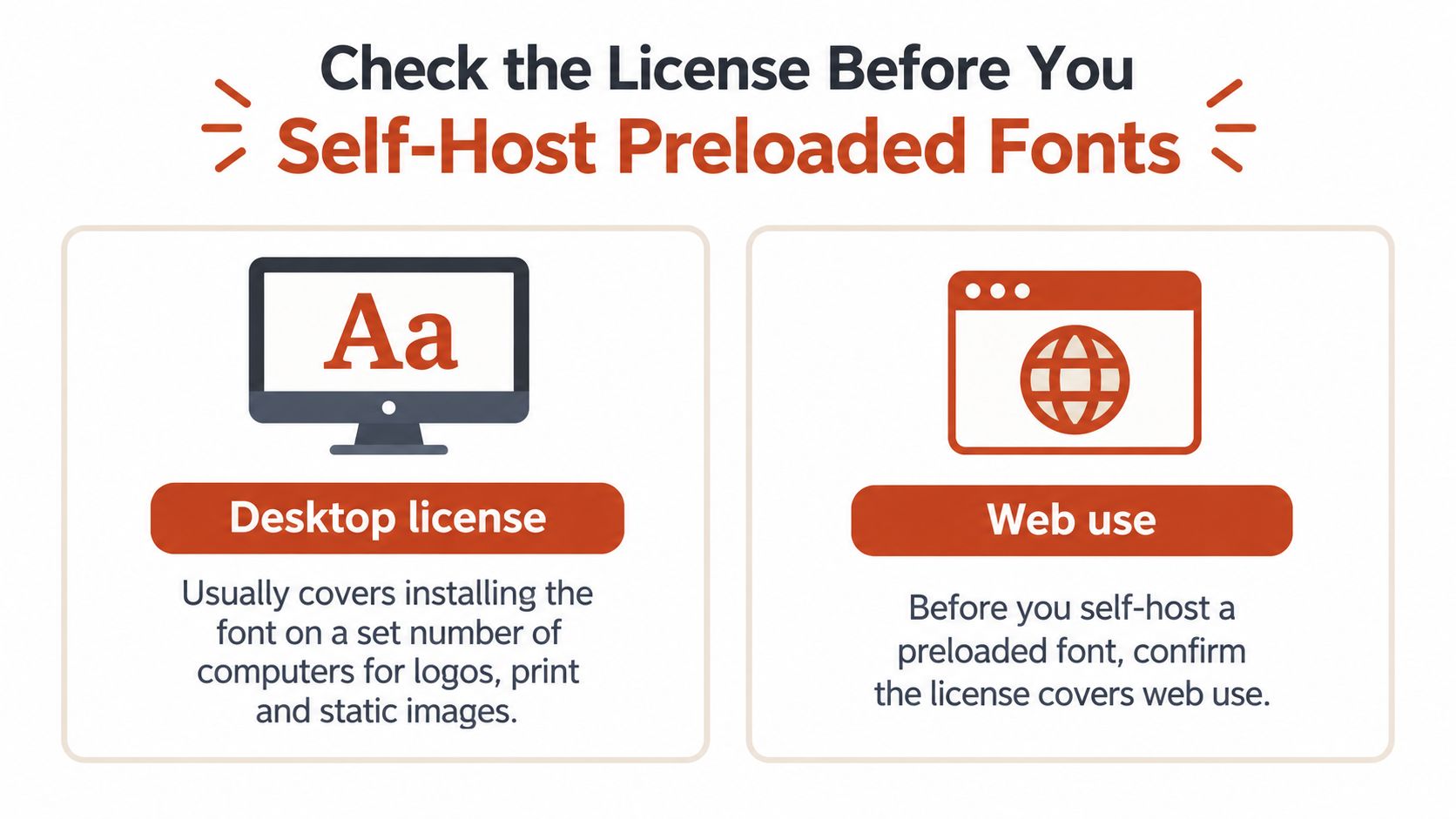
Check the EULA's domain, pageview, format, and distribution clauses before adding a font to the build. For agency work, verify that each client's site is covered. Keep the purchase record and applicable license with the deployed assets so the team can confirm authorization during future updates. Review this guide to web font licensing and compliance for a practical checklist.
A preload can make an unlicensed file easier to deliver, not more permissible. If the terms are unclear, pause deployment and request written confirmation from the rights holder. A scanner or filename can help identify a font, but neither establishes permission to use it. This information is general and informational, not legal advice; the applicable license governs.
How to Add a Preload Declaration Correctly
Get the request and license right before optimizing timing. A correct declaration tells the browser which resource to fetch early, but it won't help if the URL differs from the CSS font, the file isn't used on that route, or the font request can't reuse the response.
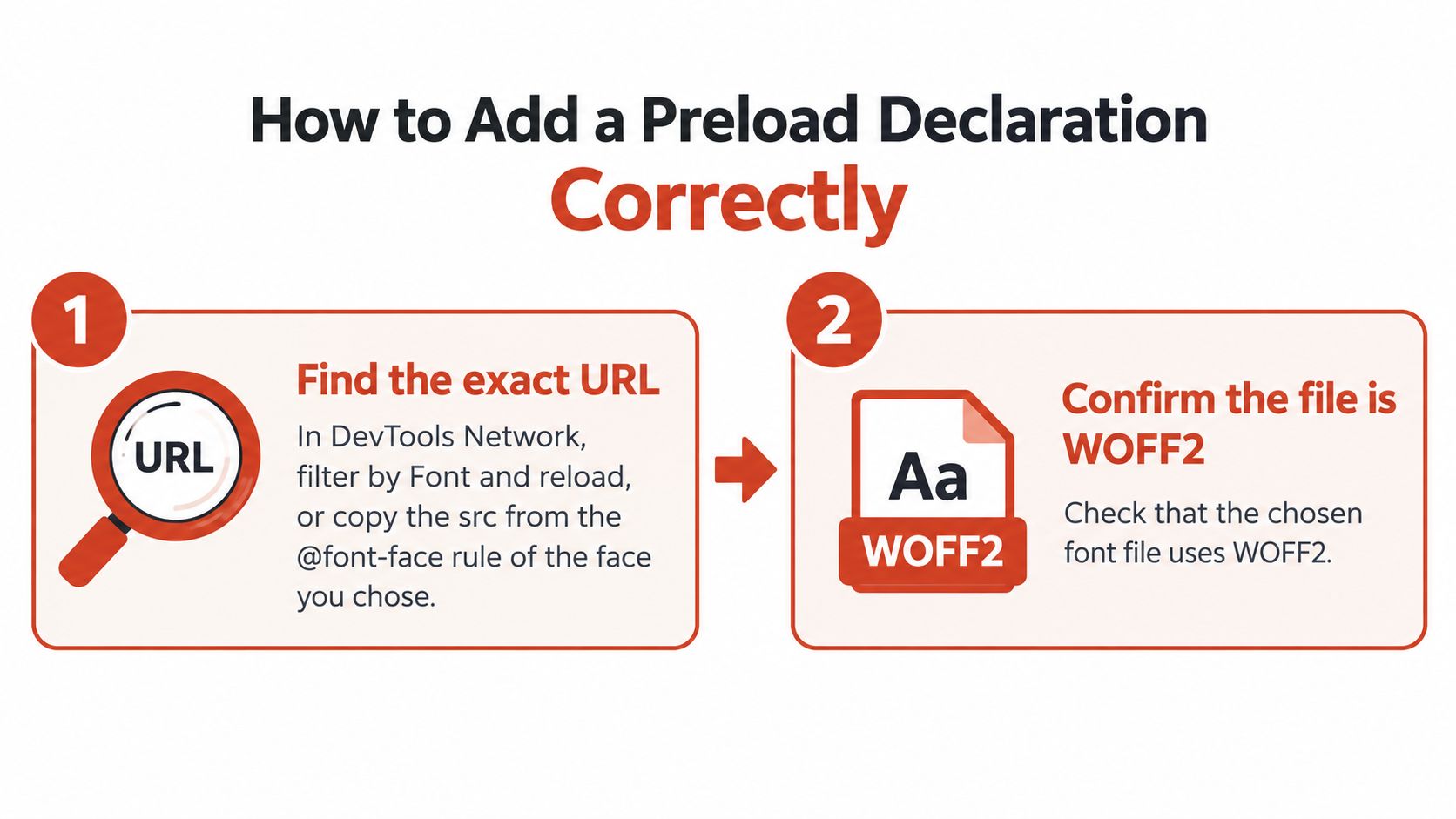
Find the exact URL. In DevTools Network, filter by Font and reload, or copy the
srcfrom the matching@font-facerule. The common mistake is copying a stale path from an old build.Confirm the file and subset. Check that the chosen asset is WOFF2 and corresponds to the glyph range needed by the visible text. The common mistake is preloading a different language subset with a similar filename.
Add the head-level hint. Place it in the document head before the stylesheet that declares the face:
<link rel="preload" href="/fonts/body-regular.woff2" as="font" type="font/woff2" crossorigin="anonymous">. The common mistake is using the wrongasortypevalue.Keep
crossorigin. Font requests use CORS semantics, so includecrossorigin="anonymous"even when the file is self-hosted. Without it, the preload may not match the later CSS request and the browser can download the font again.Match the CSS source exactly. Make the preload
hrefidentical to thesrcin@font-face, including the path and any version string or query string. The common mistake is adding the hint to a template whose CSS points to another URL.Set a deliberate display policy. Use
font-display: swaporoptionalon the matching face so fallback text can remain visible while the font loads. The common mistake is assuming preload alone prevents invisible text or layout changes.Test with a cold cache. Verify the request on staging before shipping, then confirm the preload is consumed by the CSS font request. The common mistake is trusting a warm-cache test, which can hide the first-load behavior.
For a practical walkthrough of serving fonts from your own site, see this guide to self-hosted web fonts. The important part isn't the number of tags. It's that each tag points to a font required for the initial render and matches the CSS request exactly.
Verify the Preload and Confirm Before You Ship
A regional CDN can return a different path for the same font subset, even when filenames look alike. In DevTools, open Network, select the Font filter, disable the cache, and reload the page. Check whether the preload starts early and the CSS font request reuses it instead of transferring the file again.
If you see duplicate downloads, compare the preload and CSS request using the checks above. Then inspect the Initiator column before and after the change. The preload should start earlier, and the CSS request should not trigger a second transfer.
| Symptom in DevTools | Likely cause | Fix |
|---|---|---|
| Same font downloads twice | Preload and CSS requests do not match | Compare the request details and correct the mismatch |
| Console warns preload not used | Font is unnecessary on the route, or the hint does not match the eventual request | Confirm the face appears in initial content before keeping the hint |
| Font fetched after the stylesheet | Link is late or absent from the route's template | Place the link in the document head for that route |
| CORS error on font | CDN response does not permit the page's origin | Check response headers or serve the file from the site's own host |
Font served as text/plain |
Server returns the wrong MIME type | Set the content type to font/woff2 |
| Text flashes or shifts after loading | Fallback metrics differ from the web font, or the display policy delays text | Tune the fallback metrics and check the face's display policy |
A preload warning can mean the font is not needed for that route's initial render. Remove the hint if the face does not style visible text early; extra preloads compete with images, stylesheets, and other requests for bandwidth.
Test with a throttled connection and watch the text while the font loads. Fallback font metrics affect line breaks and element height, so a poor match can shift content even when the font arrives promptly. For a route-by-route review, use this practical guide to checking fonts on a website to organize the audit.
Before each release, record the visible text served by each preload and compare cold-cache traces. Keep a hint only when the font is used in the initial viewport, the trace shows an earlier request without a duplicate transfer, and the text remains stable under throttling. Recheck after a theme change, a new language subset, or a CDN move. Remove preloads that no longer meet that test.
Use Font Checker Pro to scan live pages and font assets, review typography and licensing details, and export an audit trail for your team. Run a scan before shipping a new preload, then schedule recurring checks to catch changed files or unexpected fonts between releases.