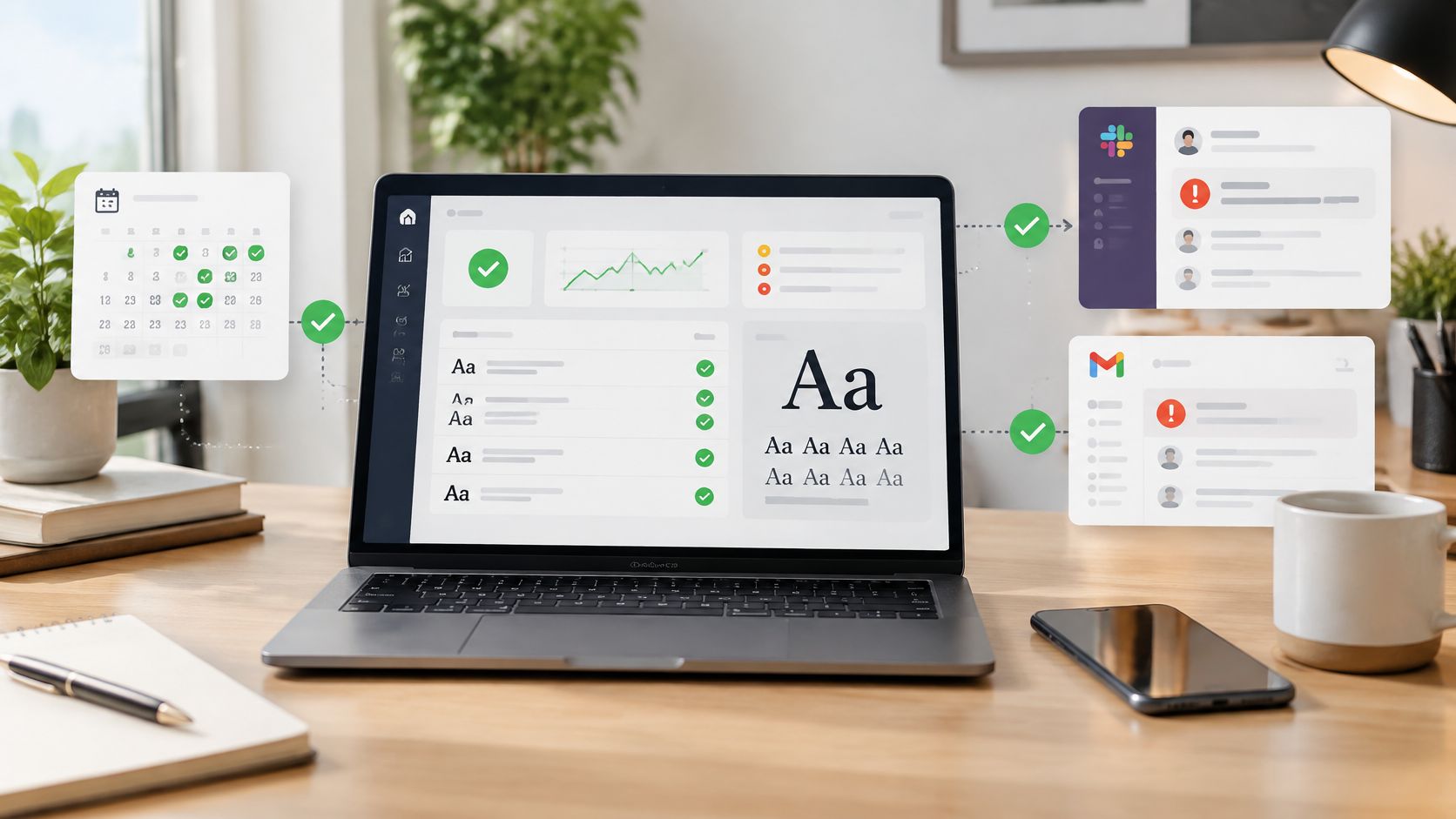
You've turned on Slack alerts for a font scan, someone ships an unapproved typeface to production, and nothing reaches your inbox. The Slack message is sitting in the channel. You were active in Slack at the time, so Slack held the email back by design. That's the confusion at the center of Slack email notifications for font monitoring. There are two separate paths, and they follow different timing rules.
Font Checker Pro sends its own scan alerts when a monitor finds something. Slack sends its own notification emails about mentions, direct messages, and followed threads, and only when you're inactive. If you treat those paths as one setting, a correct setup will look broken. Separate them, assign an owner to each alert, and test while you're away from Slack, and the system becomes predictable.
Alert Events and the Channel to Use for Each
| Alert event | Trigger | Recommended channel | Owner |
|---|---|---|---|
| New or unapproved font on production | Monitoring scan finds a face not on the approved list | Slack channel watched by design operations | Brand or design lead |
| License lapse | A license passes its term | Slack channel plus Font Checker Pro email to a shared inbox | Legal or compliance contact |
| Self-hosted font that cannot be verified | File is flagged for license review instead of passed through | Slack channel for developers | Front-end lead with the license file |
| Unverified identification result | Identification cannot confirm a font with confidence | Email to one named reviewer | Designated reviewer |
Why Each Row Goes Where It Does
An unapproved font on production needs the people who maintain the approved list, so it goes to a channel design operations watches. A license lapse can't wait for someone to notice a channel message, so it goes to Slack and to a shared inbox legal or procurement reads. Otherwise a site can stay live on an expired license while the alert sits unread.
A self-hosted font that cannot be verified goes to developers because the front-end lead holds the license file and can check it. An unverified identification result goes to one named reviewer, not the whole team, because it stays an open question until a person confirms it. Broadcasting uncertainty creates noise without creating an answer.
Before you change any setting, write down the owner for each row. If you can't name the owner, don't enable the alert yet. Teams that also track agent-readiness scores and alerts will recognize the same rule. An alert without a named owner is just a log entry. If you're comparing notification channels more broadly, our guide to text alerts tools for teams shows where SMS fits alongside Slack and email.
Routing rule: send every alert to the smallest place where a named person can act on it today.
How to Connect Slack and Email Alerts
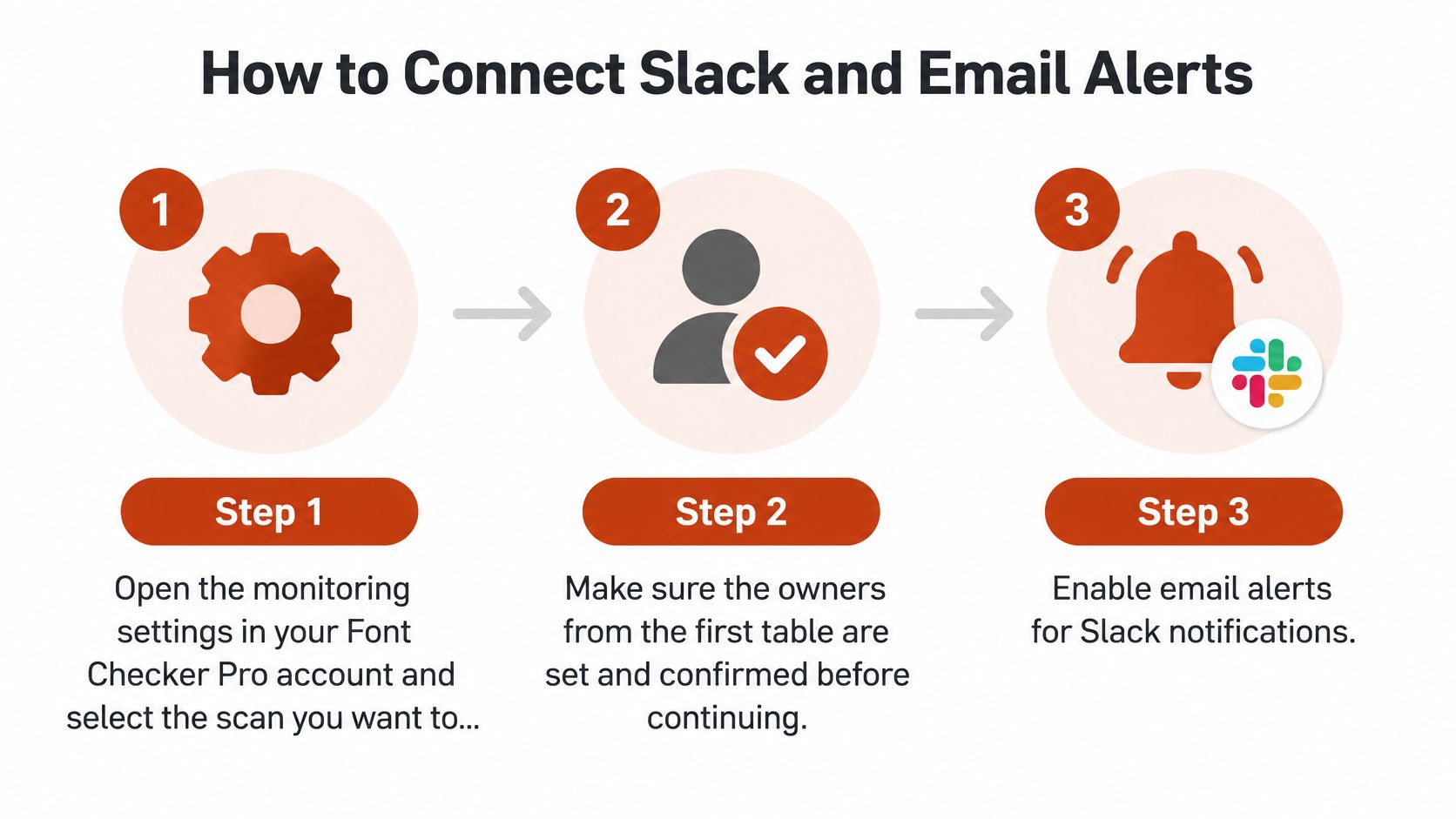
Select the scheduled scan. Open the monitoring settings in your Font Checker Pro account and select the scan you want to alert on. Alerts come from scheduled monitoring, and a one-off scan won't replace it. The common slip is alerting on a scan that only runs manually.
Connect Slack and pick the channel. For license findings, use a channel with small, accountable membership rather than a general announcements room. Don't pick a channel nobody checks, even if it has the right name.
Add Font Checker Pro email recipients. Use a shared inbox for legal or compliance so alerts survive staff changes and holidays. Adding one personal inbox as the only recipient guarantees a gap later.
Set the scope for each monitor. Design teams shouldn't receive every developer-side finding. A broad scope buries the items each team can act on, so don't leave the default scope on every monitor.
Set your Slack notification preference separately. Choose how Slack handles your mentions and direct messages, including whether Slack email notifications are enabled. That's a separate setting from Font Checker Pro alerts, and assuming one controls both is the most common setup error. If your team also needs messages to leave Slack for people outside the workspace, it's worth understanding how to set up Slack email forwarding as a distinct workflow rather than expecting native notifications to do that job.
Stop and test. Run the test protocol at the end of this guide before you rely on the setup. Passing the test means you're ready to rely on it, not that you're finished.
Two Settings, Two Owners
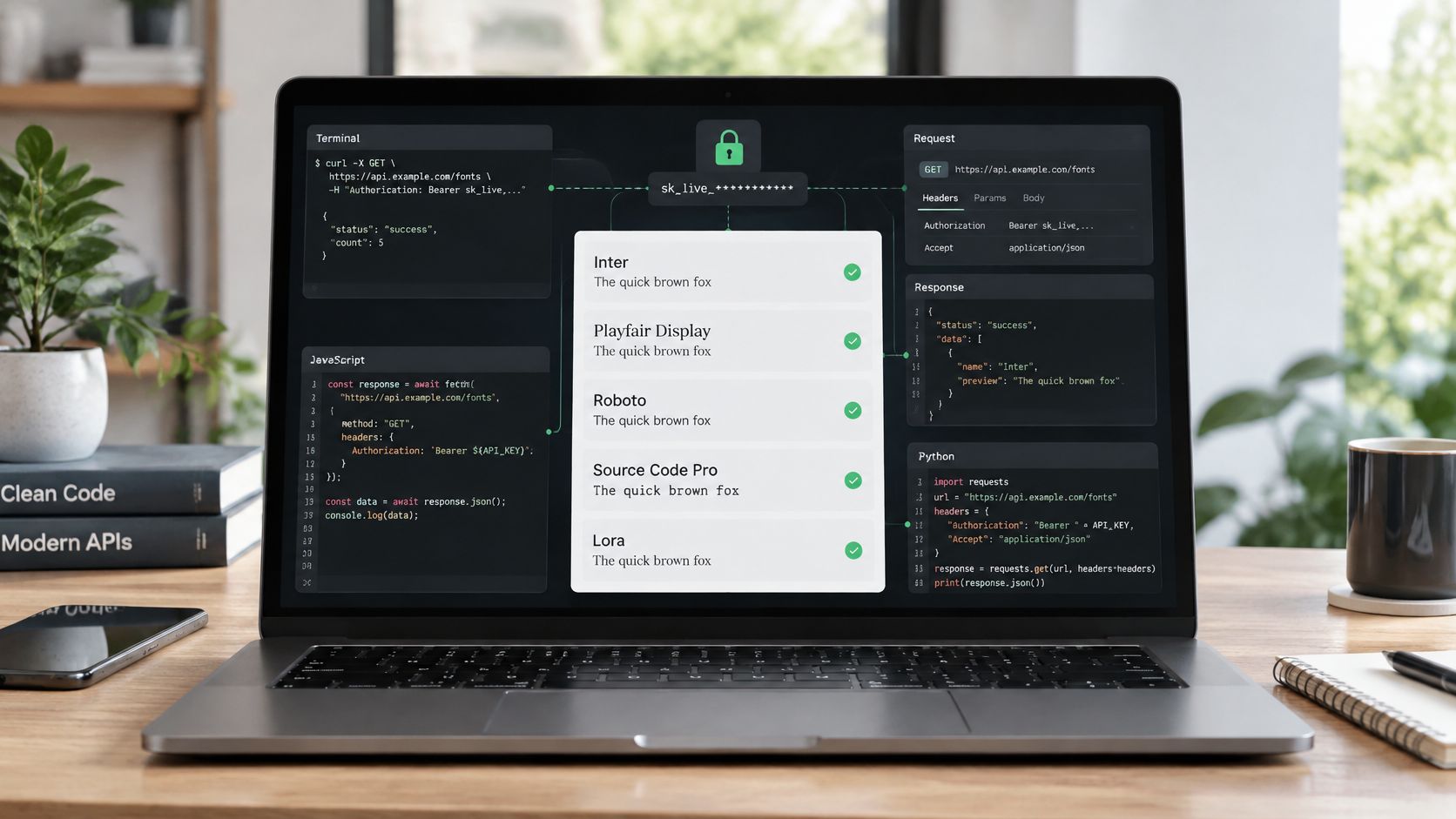
Own the distinction. Font Checker Pro controls which scan findings create an alert. Slack controls whether Slack emails you about activity in Slack. Teams automating checks in a pipeline can extend the same split through the patterns in our guide to REST API use cases for fonts and CI/CD, but the ownership rule doesn't change.
Scan Schedules and Slack Digest Timing
| Slack email interval | Delivery windows per hour | Delivery windows per 24 hours | Best fit |
|---|---|---|---|
| Every 15 minutes | Up to 4 | Up to 96 | Time-sensitive license and rogue-font findings |
| Once per hour | 1 | Up to 24 | Routine findings and weekly review |
Slack batches its own email notifications at two selectable intervals. According to Slack's guide to managing email subscriptions, bundled messages can include mentions, direct messages, and replies to threads you follow when you're inactive, delivered every 15 minutes or once per hour. That gives you up to 4 delivery windows per hour, or up to 96 in 24 hours, on the faster setting, and 1 per hour, or up to 24 in 24 hours, on the hourly setting.
Maximum Windows Are Not Promised Emails
Those numbers are ceilings, not volume forecasts. You only get an email in a window if a qualifying event happened while you were inactive in Slack. No mention, no direct message, no followed-thread reply means no email, however often the window opens.
Teams often misdiagnose Font Checker Pro alerts. Font Checker Pro email alerts are a separate path tied to the scan that detects the finding. Don't expect Slack's digest interval to delay them. Confirm timing in your account settings, and check the scan time first if a Font Checker Pro email seems late. The scan schedule controls when we look. Slack's interval controls when Slack bundles its own emails. Confusing the two sends you to fix the wrong setting. Our explainer on audit report dates helps you read scan timestamps correctly when you compare them with email arrival times.
Match the Interval to the Consequence
A license lapse that needs same-day action suits the 15-minute interval. Routine findings you review weekly suit hourly digests and fewer interruptions. I would use the fastest interval only for alerts that need it and keep everything else hourly. If everything is urgent, your team will start ignoring the channel within a month.
Formatting Alerts and Routing by Team and License Type
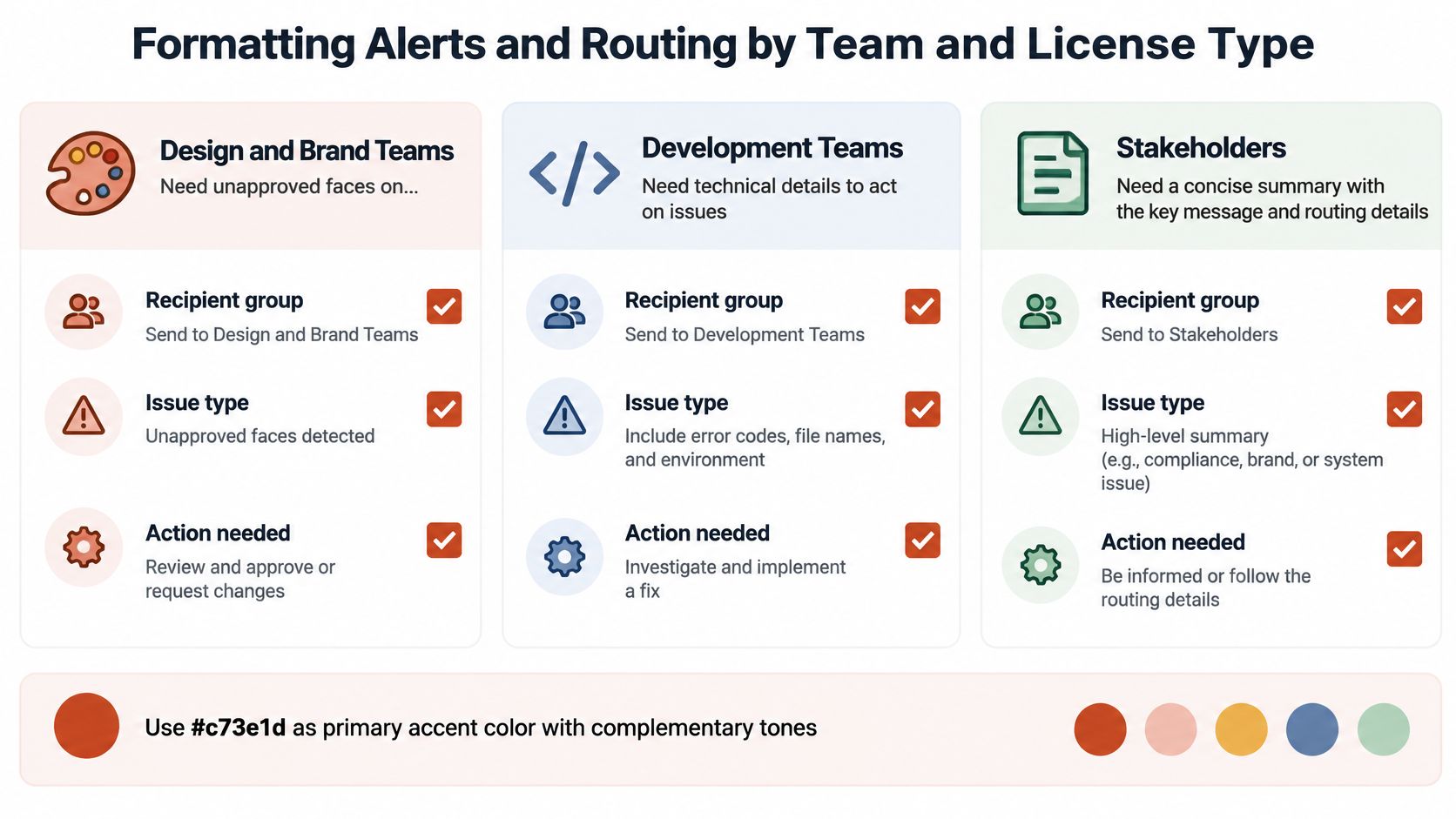
Route by who can act, not by who might be interested.
- Design and brand teams: unapproved faces on production and drift from the approved list.
- Developers: self-hosted files, unverified files, and technical findings they can fix in code.
- Legal or compliance staff: license lapses and anything that needs license records attached.
Desktop Permission Does Not Equal Web Permission
This distinction decides where many alerts belong. As Monotype's licensing guidance explains, a desktop license permits installing font files on Mac or Windows and using them in applications such as Word, InDesign, and Photoshop. A webfont license is separate. It's annual, generally tied to a single domain, and usage may be measured through pageviews, with each webpage load that calls the webfont kit's CSS counting a pageview for each webfont in that kit.
So a finding on one client site goes to whoever holds that domain's webfont license, not to the designer who installed the font locally. A font permitted on a machine isn't automatically permitted on a live site, and a webfont entitlement doesn't necessarily authorize desktop installation. Never treat a specific font as free or safe without checking which license type covers the actual use. Unlicensed use can expose a business to infringement claims and back-licensing costs, so route the finding to the record holder first.
What Every Routed Alert Should Carry
- Font family: the exact face detected
- License type: desktop, webfont, or another category in your agreement
- Covered domain or users: who or what the license covers
- Renewal date: when the term ends
- Approved use: what production use is permitted
That checklist turns a Slack ping into a record someone can act on. For the wider system behind these records, see our practical guide to font management software for teams.
This content is general information, not legal advice. The applicable foundry or reseller agreement controls what your license permits.
Why an Alert Did Not Arrive and How to Fix It
The usual complaint sounds like failure. The email arrived an hour after the event, or it never arrived at all. Often Slack did exactly what it was configured to do.
| Symptom | Likely cause | Fix |
|---|---|---|
| Email arrives 15 to 60 minutes late | Digest batching at the chosen interval | Compare arrival with the interval; use 15 minutes for urgent alerts |
| No email while you were in Slack | Email is suppressed while you are active in the desktop app or browser | Test while away from Slack |
| Email reaches Slack but not your inbox | Spam, junk folder or enterprise filter | Allowlist @slack.com and @slack-mail.com and check junk and inbox rules |
| Alert missing in Slack | Wrong channel or scope set on the monitor | Recheck the channel and scope in the monitor settings |
| Email stopped after an IT change | New mail policy blocks Slack sender domains | Rerun the test protocol after any mail-policy change |
Work the Symptoms in Order
Late usually means batched, not broken. Compare the arrival time with your chosen interval before you change anything. An email landing inside the next 15-minute or hourly window is on schedule.
Missing while you were in Slack is expected. Slack suppresses email when you're active in the desktop app or browser. Test while you're away, with Slack closed, or you'll waste an afternoon chasing correct behavior.
Missing from the inbox but sent by Slack points to filtering. Per Slack's troubleshooting guidance for email delivery, administrators should allowlist "@slack.com" and "@slack-mail.com", which organizational mail systems may block. Check spam, junk folders, and enterprise inbox rules before you reopen your Slack preferences.
No email from a Slack alert usually means a preference is off. Check your global Slack email preference first, then any channel-level setting that narrows notifications. Changing them in the wrong order makes the effective setting hard to read.
Keep the Finding Even If the Email Fails
Work the fix sequence in that order. Verify inactivity, check the interval, check mail filtering, then check preferences. A missed email isn't a lost finding. The Slack message stays as a human-readable backup, and the stored scan record stays as evidence. That separation is the practical point behind our guide to audit trails and their purpose.
If a problem persists, email support@fontcheckerpro.com for bugs, scan anomalies, or account trouble. Open a support ticket for billing or security issues, since that's the route for anything other than self-serve help. Include the scan time, channel, and recipient so we can reproduce the right path.
Test Alerts and Start Monitoring Your Fonts
Don't trust a setup you haven't tested under the conditions Slack email notifications require.
A Short Test Protocol
- Send controlled events. Post a mention and a direct message to a test user who is away from Slack, with the app and browser closed.
- Log five fields. Record the event time, the user's activity state, the chosen interval, the message headers, and where each email landed.
- Repeat after changes. Run the same test after any mail-policy change, because a new filter can undo a passing result.
Calculate notification success rate as delivered test messages divided by eligible test messages, excluding events intentionally suppressed because the recipient was active. Measure latency from the Slack event to mailbox receipt and read it against the 15-minute or 60-minute schedule, not against a real-time target. An email arriving in the next scheduled window passes. Counting suppressed events as failures will make a healthy setup look unreliable.
Set the Production Monitor
Confirm the scan schedule, the owner for each alert, and the license record for each font in use. Our monitoring schedules recurring scans and sends a Slack or email ping when a new or unapproved face appears on production, with a full history of every scan. The Pro plan includes PDF, CSV and JSON export, scheduled re-scans with email alerts, REST API access, and ticket support, so confirm which alert types and export formats your plan includes before relying on them for records.
Keep Slack's native notification as a human backup. Keep the scan event and alert status in the Font Checker Pro audit trail so suppressed or filtered email can't erase evidence of a license lapse. Your first action is simple. Send the first test mention this week, while the test user is away from Slack, and log the result.
Pick channels by owner, match intervals to urgency, and test before you trust the setup. This content is informational, not legal advice.
Set up a production monitor, route each finding to its named owner, and keep a defensible scan history when Slack batches or suppresses an email. Visit Font Checker Pro to start monitoring your fonts with Slack and email alerts tied to the scan that found the problem.